Importing Shows from COGS
Add your COGS game to Drawbridge
Written By Daniel Gleaves
Last updated 4 months ago
You can easily add a COGS show into Drawbridge using these steps:
Automatic Installation
To ensure your COGS shows are properly synced with Drawbridge, we have created a helper program! This program will:
Ensure your COGS show has all of the necessary behaviors, configuration, and plugin installed
Check for plugin updates
Notify of any updates to the helper itself
You can download the program here:
Installation Steps
Please ensure COGS is NOT running when you sync, or it may overwrite changes. Start COGS once installation and syncing are complete
Download the program (above)
Install the program
Input your Drawbridge Server IP address
We will provide this to you if you do not have it
Select your COGS show file (.cogs)
Enable autostarting
Submit to save your configuration
Install the plugin
Sync with Drawbridge
Done!
Now that the Drawbridge Connector is installed, it will watch for changes to your COGS show, ensure that it stays in sync with Drawbridge updates, and ensure the connector plugin is always up to date.
Remote Access
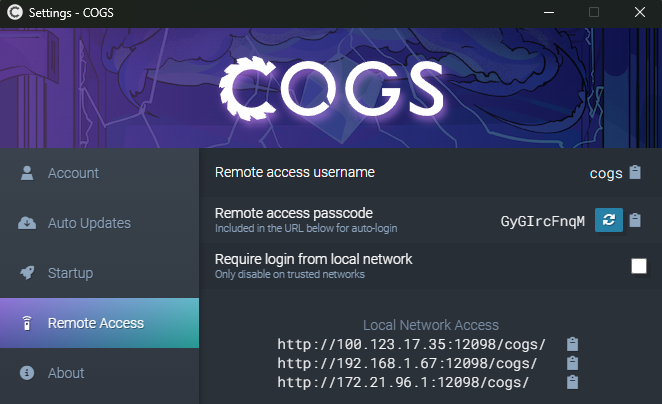
In order to access COGS over the network, ensure that LAN access is enabled without a password:
Uncheck “Require login from local network”
Manual Installation
1. Install the Drawbridge Connector plugin
We have created a plugin to install directly into COGS that allows your COGS show to communicate with your Drawbridge server. No matter what computer is running the COGS show, as long as it is on the same network, it can reach it!
We will provide the plugin directly to you during the onboarding process.
Once you have the plugin, unzip it and drag the plugin folder into your COGS show’s plugin folder.
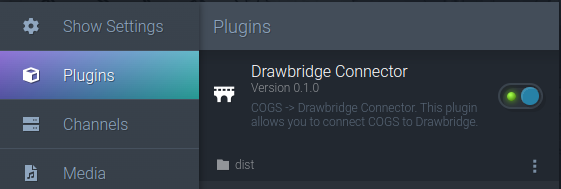
You should now see the Drawbridge Connector in the “Plugins” tab.
Enable the plugin!
2. Configure Plugin Settings
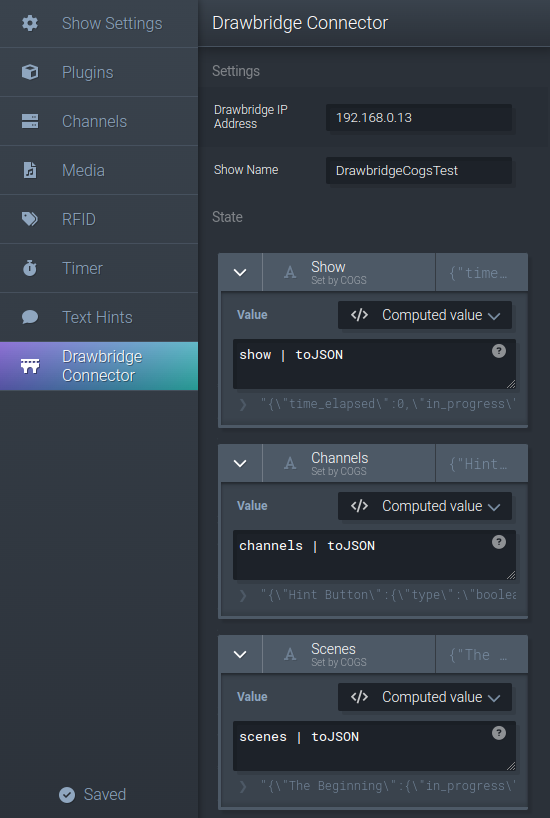
Once the plugin has been installed, there are just a couple settings to configure to ensure Drawbridge gets all of the information it needs! When the plugin has been enabled, a new “Drawbridge Connector” tab will appear in the Build tab.
Drawbridge IP Address - Set Last
This will be the local IP address of your Drawbridge server. We will provide this if you do not already have it.
This value should be set last to ensure all data is available and set properly immediately on connection with the Drawbridge server.
Show Name
The name of your show as you would like it to appear in Drawbridge. This should be unique from other shows in your venue.
You can use any letters, numbers, or spaces. Do not use symbols in the show name or certain features may not work.
State Values
In order for Drawbridge to get notified of state changes from COGS, there are a few values that need to be passed along.
All should be set to the “Computed Value” type.
Show
Type: Computed Value
show | toJSON
Channels
Type: Computed Value
channels | toJSON
Scenes
Type: Computed Value
scenes | toJSON
3. Set up COGS Behaviors
To support two-way communication with COGS, Drawbridge requires a couple behaviors to be set.
Pre-Show Behaviors
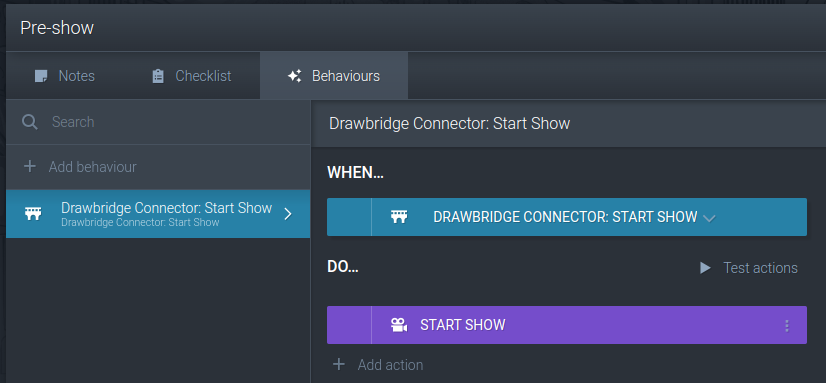
This will allow for the game controls on the hosting page to start the show! We recommend also setting shows to auto-start to ensure the show goes straight into Pre-Show automatically.
Show Behaviors
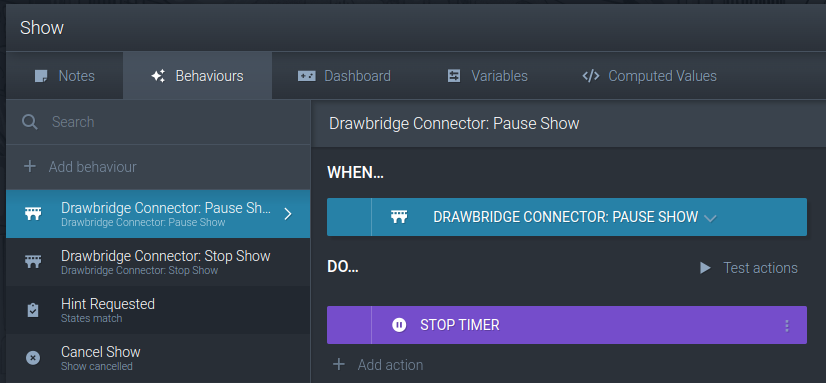
This will allow the controls to pause the game timer.
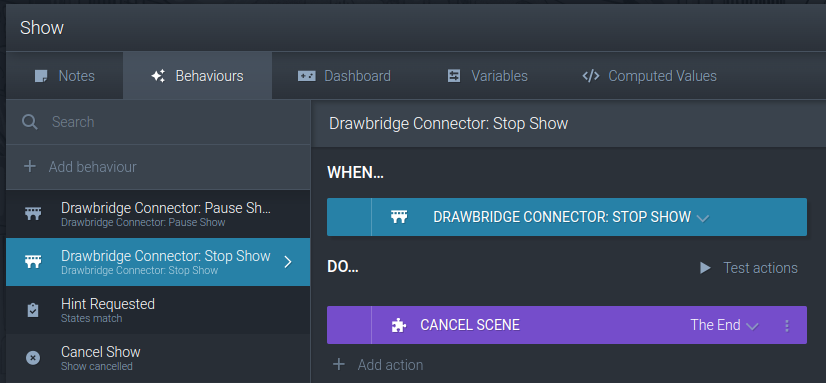
The Stop Show event is intended to cancel the show from the Drawbridge game controls.
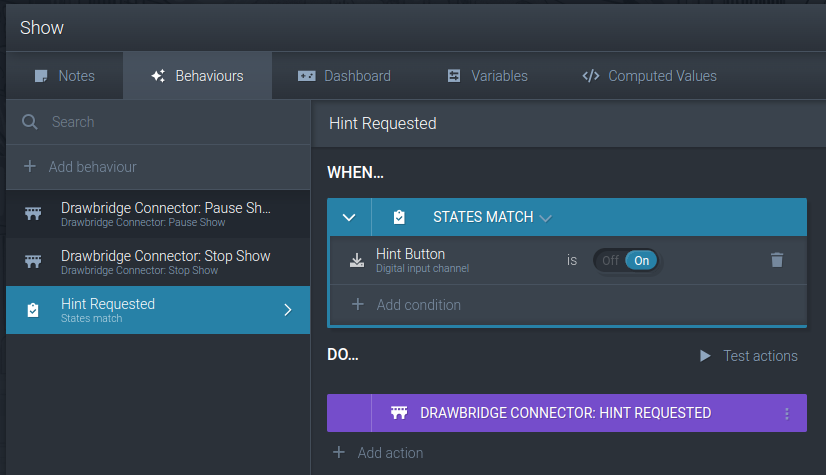
If you have a hint button or other device to signal that players have requested a hint, you can map that into Drawbridge by triggering the Hint Requested behavior.
4. Configure Drawbridge settings
You should now see your show in Drawbridge! You will now be able to change game-specific settings in the Drawbridge settings menu to set things like help requested alert chimes, the game icon, cameras, scene tasks, scene timings, and all of the rest of the things!
Was this helpful?
Still need help? Share an idea