Gamemastering
A collection of videos about the Game Master Page
Written By Daniel Gleaves
Last updated 14 days ago
Overview
This video goes through the basics of gamemastering while using Drawbridge.
Ahead/Behind Timer
A closer look at Drawbridge’s ahead/behind timer and how it can benefit your gamemastering experience.
Alert Sounds and Colors
A quick introduction to Drawbridge’s alert system, which keeps you up to date on the current state of all games with just a glance.
Camera Audio
Learn how to use cameras that have integrated audio in Drawbridge to enhance your gamemastering experience.
Camera Viewing
Take a closer look at how to manipulate cameras in Drawbridge for easy game viewing.
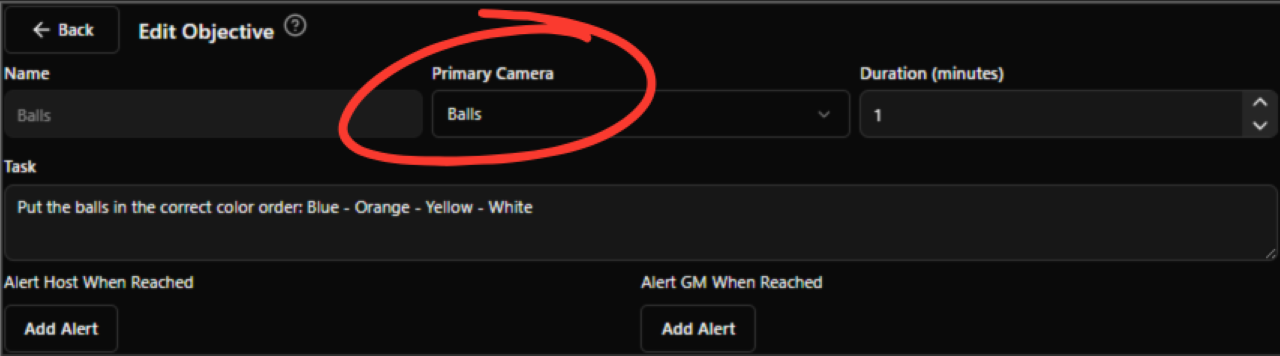
Map cameras to specific objectives in order to get the priority camera to shift automatically as the game progresses: Settings → Game Settings → Objectives.
Device Dashboard
Depending on what game control system is in use, this dashboard can be configured to show the status of devices in the game and will appear below the objectives column. When the device is inactive it will be red, and when it is active it will be green. If you have multiple sensors in a puzzle, this dashboard will let you identify which items in the sequence are correct without having to ask the group.
If you want this turned on, you’ll have to set a device default value in settings. Navigate to the story and then under devices. In here, you’ll set what objective the device is related to and what the device should look like when it’s ‘correct’ in the game. The dashboard will only appear for the objective it is assigned to.
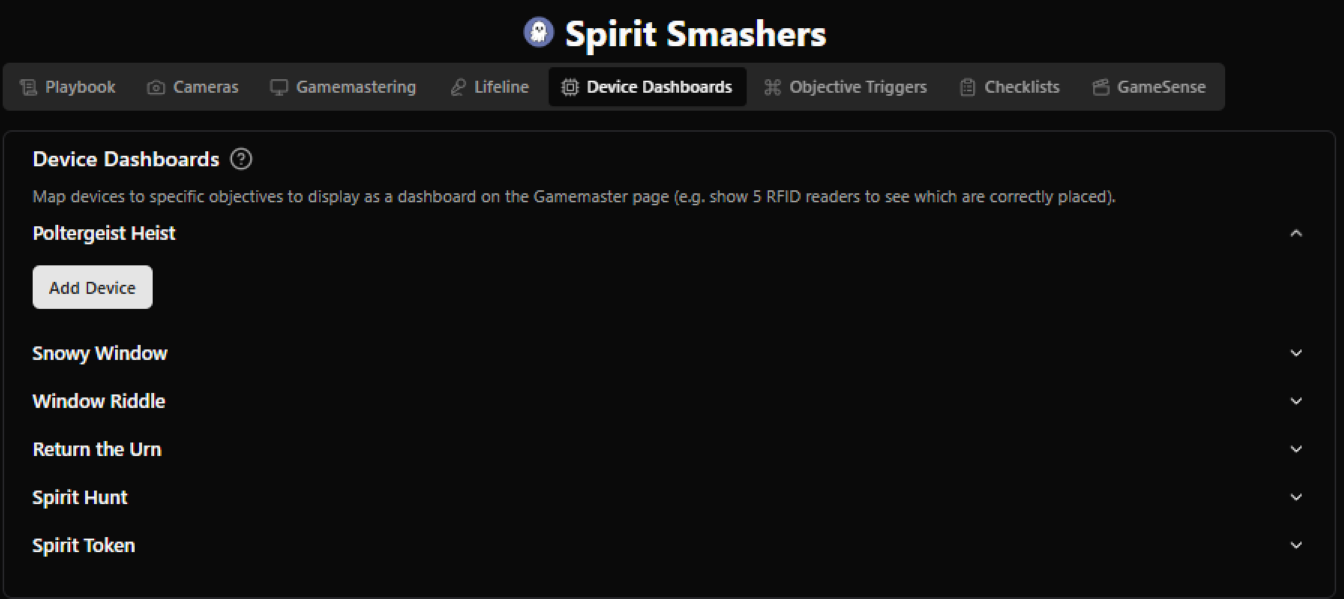
*The device dashboard is intended for users with M3 game control and devices need to be on/off style, not lock/unlock style
Mastering Multiple Games per Monitor
When mastering more than one game per monitor, adjust your browser’s “Zoom” setting until Drawbridge’s bottom menu bar is fully visible and spans the entire length of the browser window (see example below).
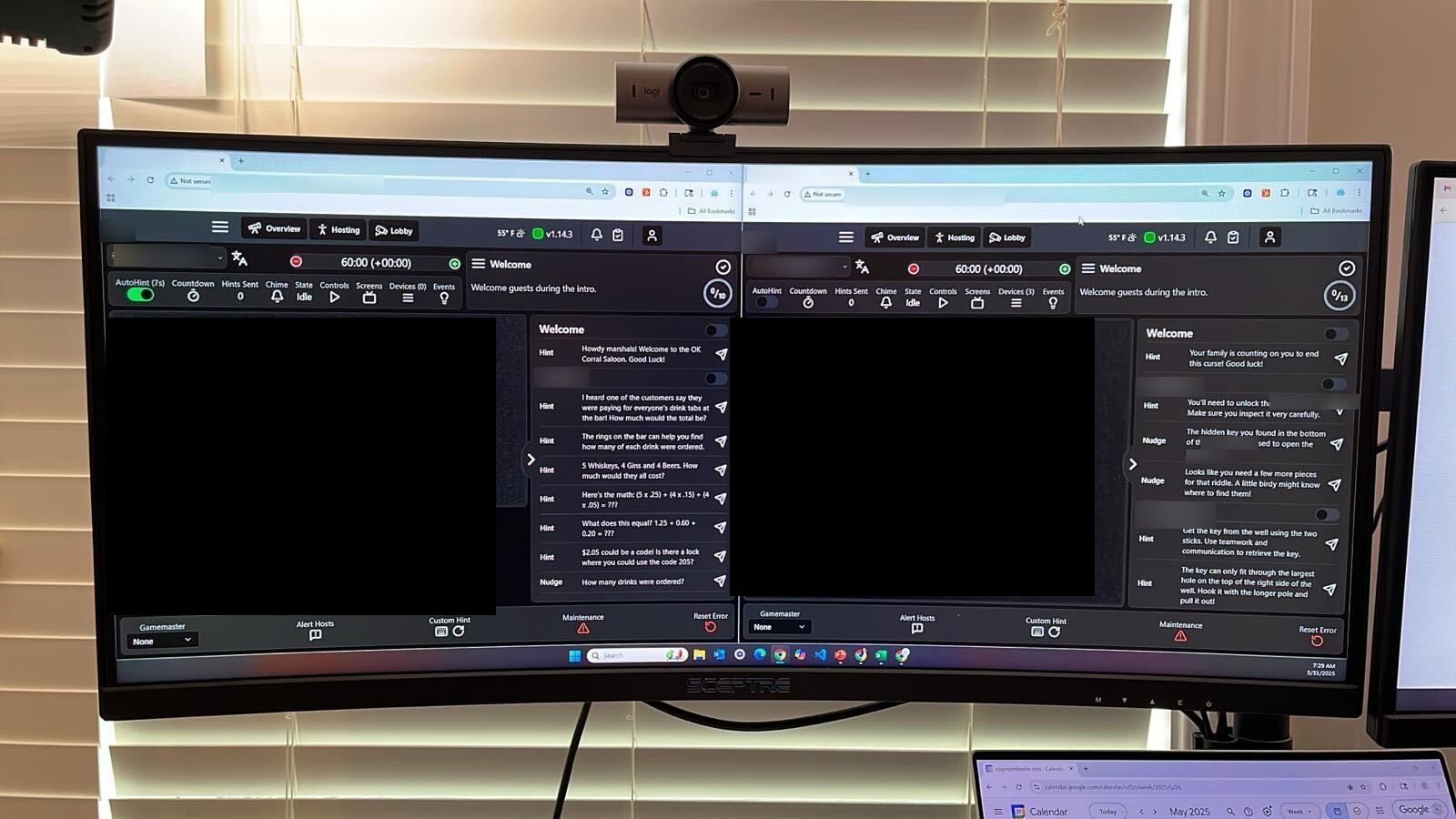
The exact zoom needed will vary depending on the resolution and physical size of monitors used.
Custom Hint
Follow along with this video to learn how to send not just pre-typed hints, but also custom hints.
ALT + ENTER will quickly send whatever text you have typed in the Custom Hint
dialog box—even if the hint was typed previously and the dialog box is currently closed.
You can also send voice messages to the Countdown screen.
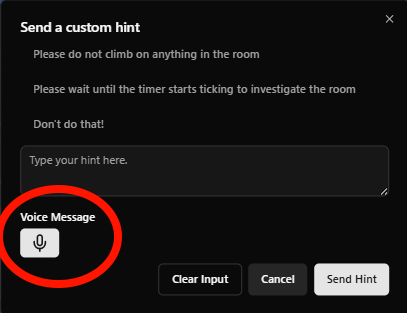
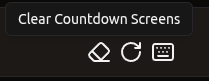
Hints can also be cleared from the timer screen by pressing the eraser button on the lower menu bar.
Additional Hint Customization
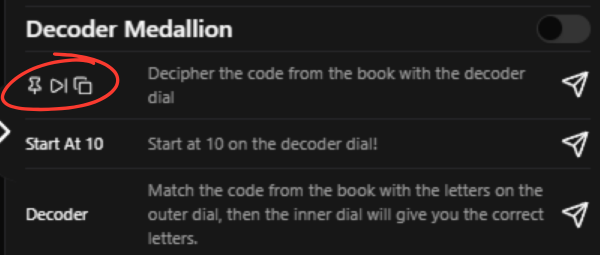
When hovering over the name of a hint, 3 icons will appear.
The first icon is to Pin a hint, meaning that if a hint request comes in this is the first hint that will be selected to be sent (even if it is usually the 3rd or 4th hint in the list).
The second icon is to Skip a hint, meaning that this hint will bypassed when a hint request comes in.
The third icon is a copy button, clicking this will bring the hint up in the custom hint box for quick edits.
Common Hints
Find yourself sending the same hints or warnings that are unrelated to gameplay to players over and over again? Take a look at our solution with common hints.
GameSense and AutoHint
Take a look at some of the features Drawbridge offers that make Gamemastering a breeze.
AutoNudge
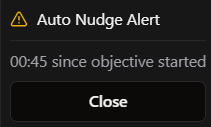
If a group has spent a while on an objective without receiving a hint, a popup may appear under the Ahead/Behind timer. This popup will suggest a nudge be sent to the group, but can be dismissed if it’s not applicable. Info on setup here.
Hint Button Functionality
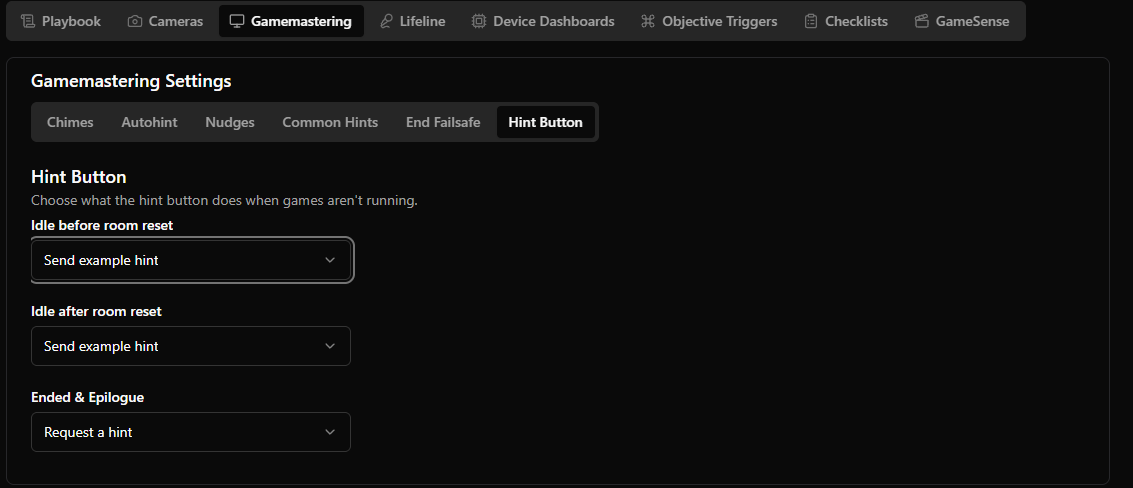
Configure Hint Button Functionality When Games Are Not Running
Set up hint buttons to support the following actions based on the game state:
Ended/Epilogue: Toggle the reset timer, send an example hint, or request a hint.
Idle Before Room Reset: Enable these options only when “Track Physical Reset” is enabled.
Idle After Room Reset: Toggle the reset timer, send an example hint, or request a hint.
Lifeline
Drawbridge offers integrated two-way audio. Watch this video to learn about Gamemastering with Lifeline.
Event Mapping
Trigger props in the room with a single click by mapping events to their corresponding objectives.
Log
Depending on the game control system, some users will have the option to toggle game objectives to view a log of everything happening in the game.
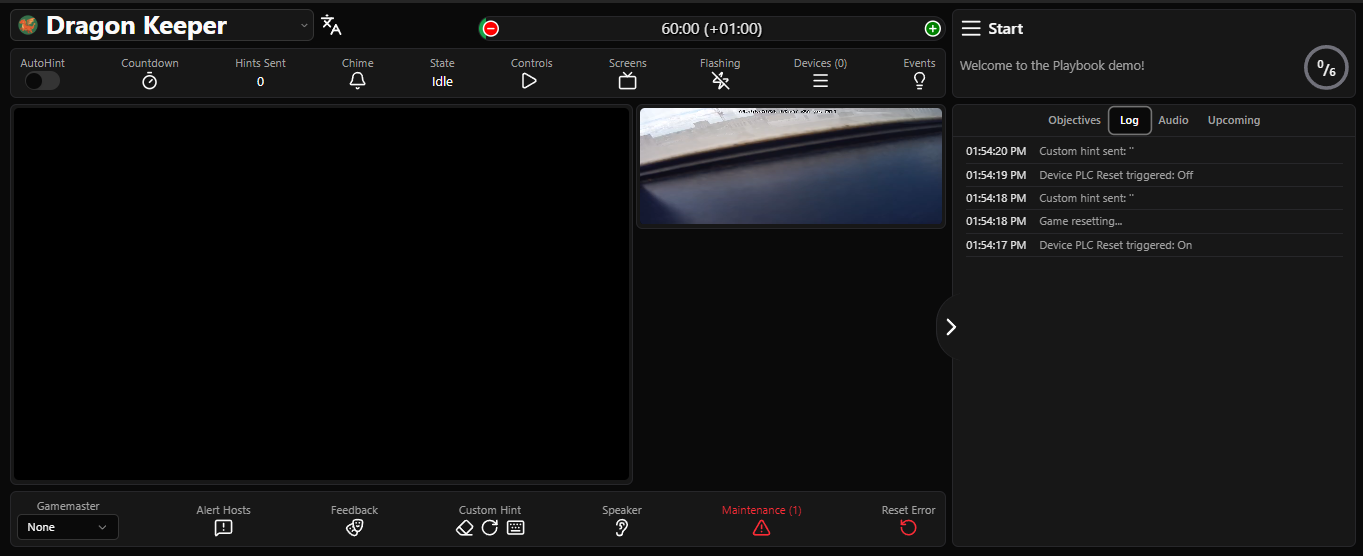
Maintenance and Reset Errors
Keep a log of maintenance needs and reset errors in your rooms.
Messaging
Need to notify a host of something that happened with a group? Take a look at Drawbridge’s solution.
Next Task
Reduce the need for memorization by keeping track of the tasks players must complete to reach new objectives throughout the game.
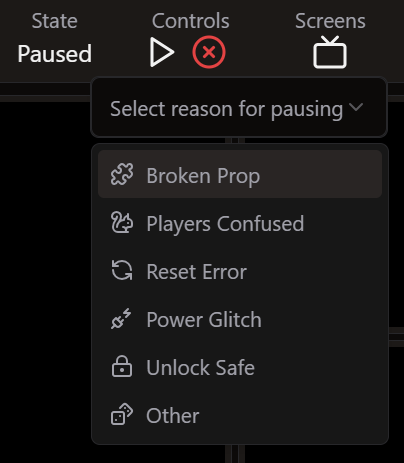
Pausing Games
When a game is paused, you can select a reason why. This gets logged in game stats and on the overview screen. Having this data can help determine frequency of issues and reduce those issues in the future.
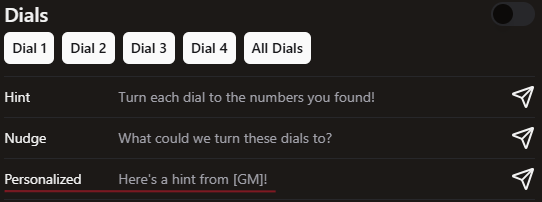
Personalized Hints
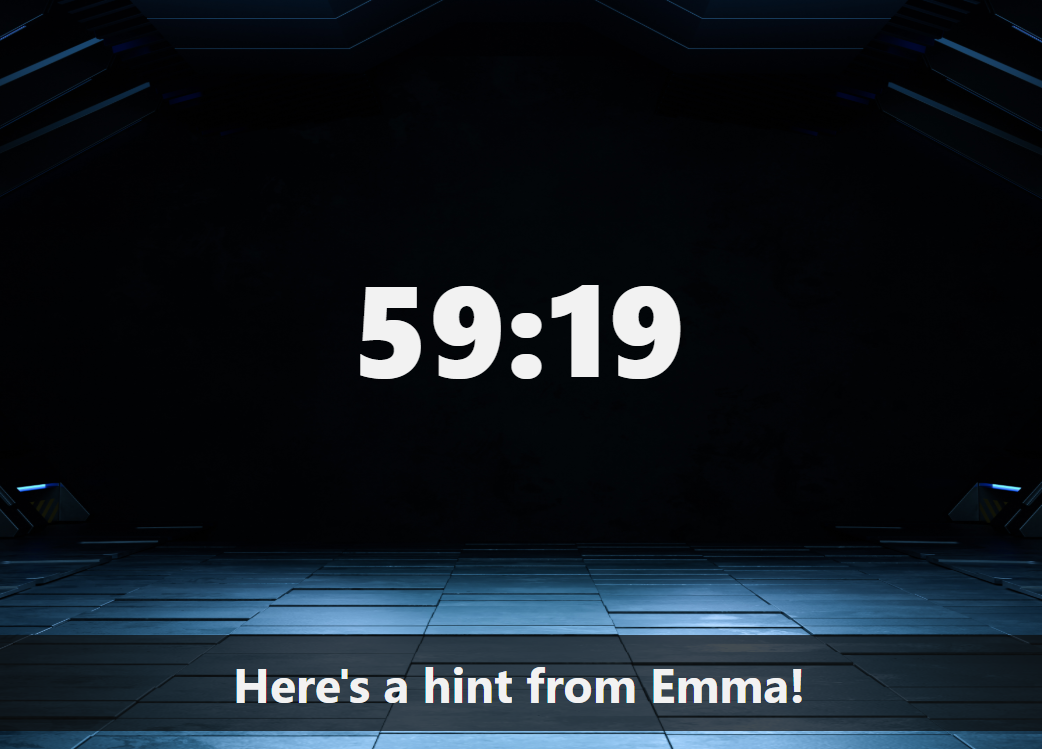
You can create hints that will insert the name of the assigned Game Master and/or Game Host.
If a hint contains [GM], it will be replaced with the assigned game masters name.
If a hint contains [Host], it will be replaced with the assigned host name.
You can include both in one hint.
This means, the game needs to be claimed by both the GM and host or else it will send with the square brackets still in the hint.
Upcoming
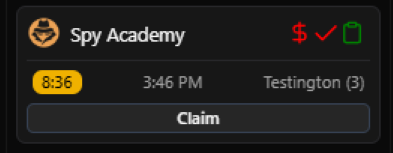
The Upcoming tab on the GM page shows bookings coming up for that game and allows GM’s to claim and start games from this page. This can be helpful if your host and GM are the same person. It also lets GM’s know exactly when the next game is supposed to start to ensure things are happening on schedule.
Group Annotation
Game Masters can now provide feedback on how groups are performing in games. This will be sent to the assigned host to help provide context when they retrieve the group. This button appears on the bottom bar on the GM page.

When pressed, GMs will see this menu.
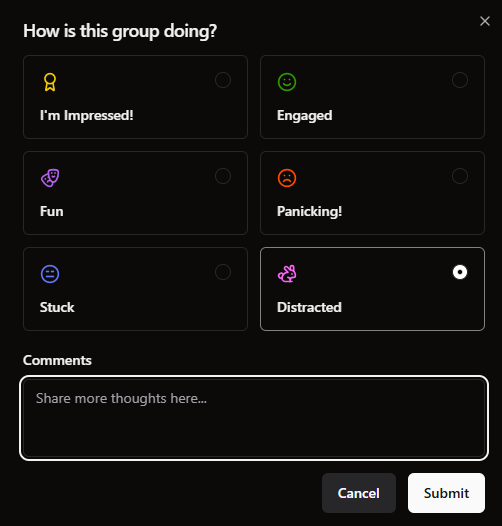
GMs can select any of the options and provide commentary. This can help give the host a highlight from the game to discuss with the group or give them context around a frustrating moment.
Was this helpful?
Still need help? Share an idea