MQTT Hint Button Setup
Add hint button integration to existing games with MQTT. Jump to the bottom of this page for a detailed video walkthrough of the setup process for the ControlByWeb X-410 IO Controller
Written By Drawbridge Support
Last updated 4 months ago
Required Hardware
IO Controller
Using either your own MQTT device or an industrial-grade ControlByWeb X-410 IO controller, you can easily wire up hint buttons or other device signaling to existing rooms.
If you do not already have an MQTT system, we would recommend picking up an X-410-E (Link). Be sure to select the X-410-E PoE version from the dropdown. This device can be used to connect to the Drawbridge MQTT server and sync its inputs to Drawbridge.
Button
In addition to a controller, you will also need a button to trigger hint requests. The ControlByWeb X-410 controller can connect up to 4 buttons as inputs. Any button can be used as long as it is Normally Open (meaning the circuit is completed upon pressing the button).
If you are using a lighted button:
Ensure that the input voltage for your light is 5 Volts if you intend to power it from the X-410 controller.
If it is not 5 volts (note that 3, 12, and 24 volts are all common LED voltages), ensure that you use an external power supply that matches the voltage of the light
Note the polarity of the light, as most LED lights only work when connected a certain way. If your LED doesn’t light up upon connecting power, try switching the positive and negative wires.
A lighted button is not required, but is shown here for reference if you choose to use one.
Wiring the Hardware
An example schematic for a lighted hint button paired with the X-410 controller is shown below:
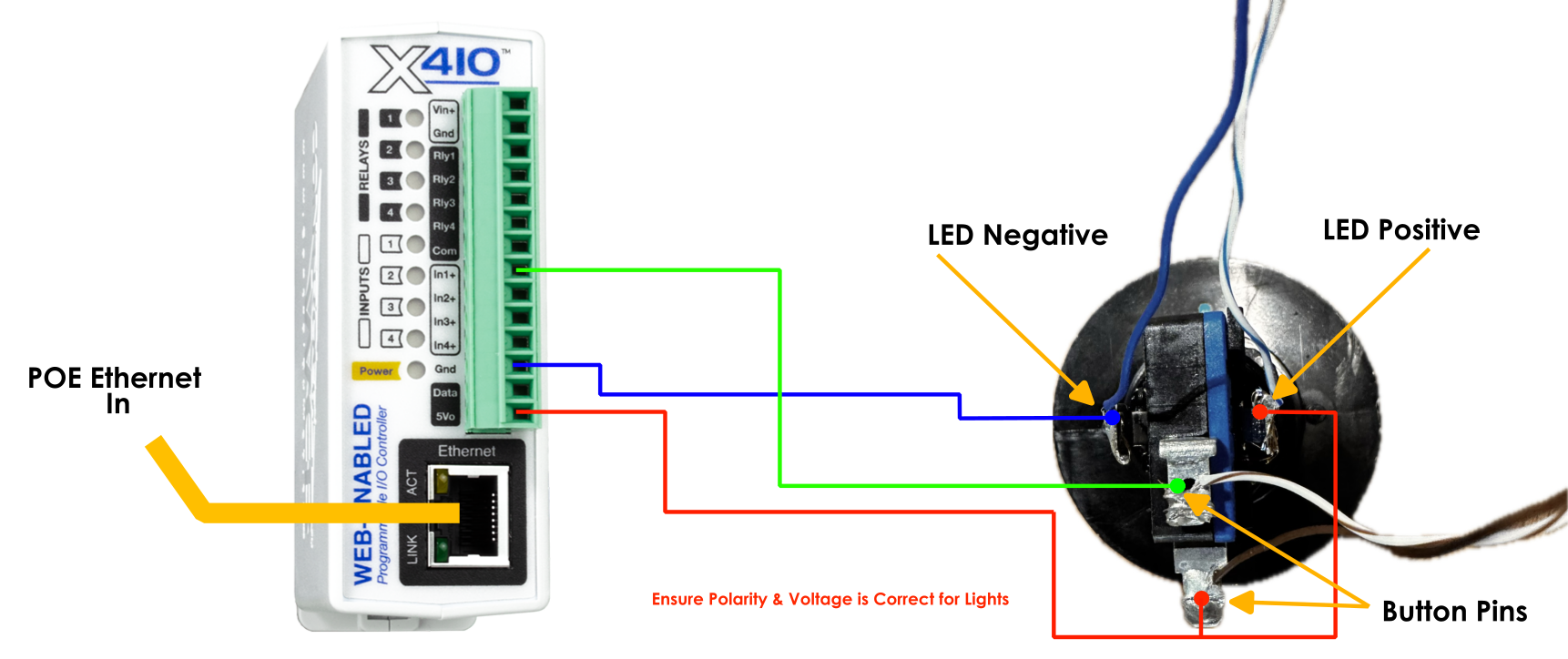
When wiring, connect:
LED Positive (red) to power supply or 5Vo on X-410
LED Ground (Blue) to power supply ground or Gnd on X-410
Button wire 1 (red) to 5Vo on X-410
Button wire 2 (green) to input on X-410 (in1+, in2+, in3+, in4+)
If you intend to add more than one button, the wiring is the same except for the button’s ground pin (the green wire in the schematic above). Each button requires it’s own input pin on the IO controller.
Software Setup
An MQTT device needs to be configured with an MQTT broker in order to send topic updates. We include an MQTT broker with your Drawbridge installlation, which will connect using your Drawbridge server’s IP address. If you need assistance in locating this address, please ask your IT administrator or email our support team.
A hint request can be triggered by publishing the following MQTT topic with the button state sent as the payload (or message content):
gamecontrol/{GAME_SLUG}/hint-requestWhere {GAME_SLUG} is the game’s ID or Slug and can be found on the game’s settings page or in the URL of the gamemaster page, as shown below:

In this example, the MQTT topic would be:
gamecontrol/gamesense-demo/hint-requestControlByWeb MQTT Controller Setup Video
For detailed instructions on the setup process of the ControlByWeb X-410 IO Controller, please watch the video below:
Was this helpful?
Still need help? Share an idea