Objectives
Keep track of your players!
Written By Taylor Reed
Last updated 14 days ago
Overview
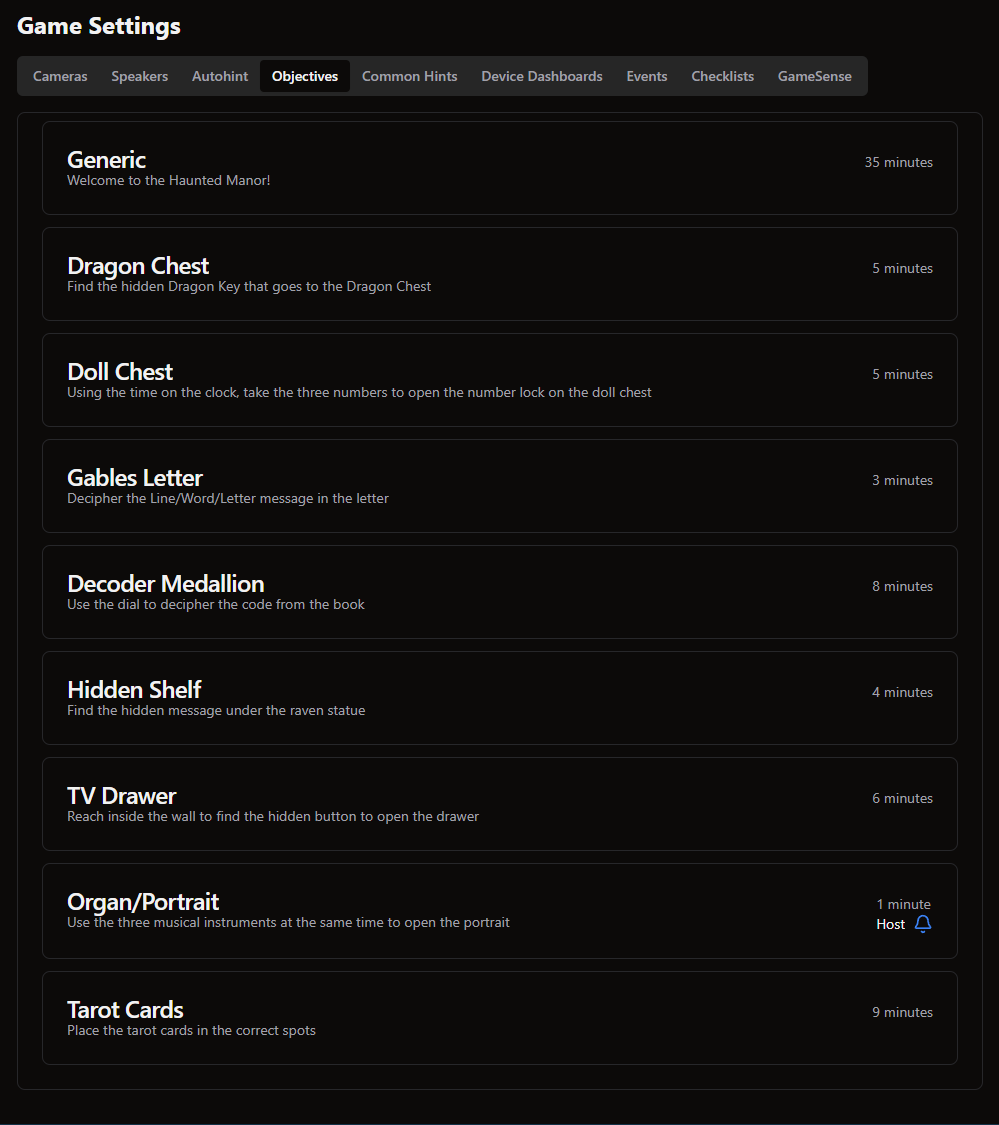
The “Objectives” tab is where you configure your games’ Objectives and how they behave within Drawbridge.
Keep tabs on how ahead/behind players are, alert Hosts when their groups reach critical moments, and automatically shift camera focus as player progress!
Settings
Click on any of the objectives in the list to edit its settings.
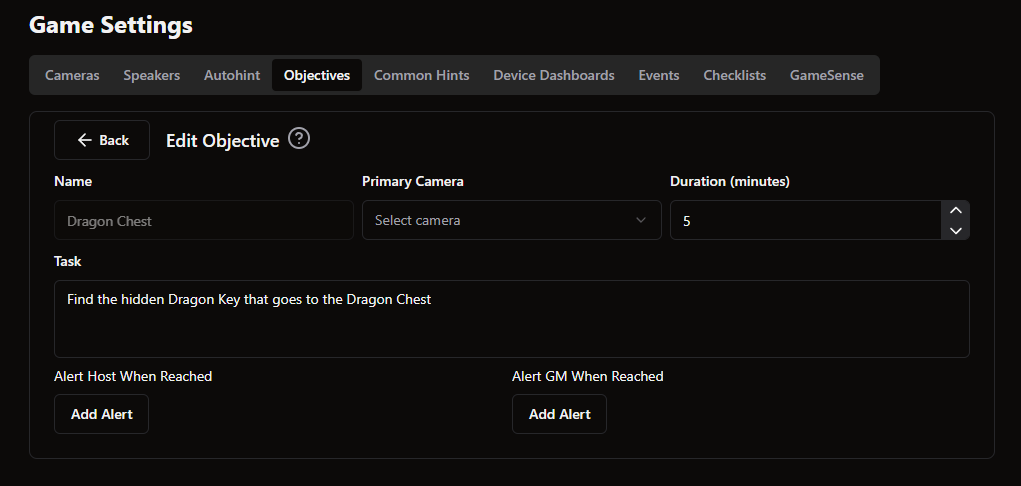
Name
Objective names are pulled directly from your Game Control (M3, COGS, etc.) and appear in the leftmost column. If you would like to rename any of them, do so in your Game Control software and the changes will be reflected in Drawbridge.
Primary Camera
If your room has multiple cameras, Drawbridge can focus on certain video feeds based on the current objective! Click ‘Select camera’ and select the appropriate camera for the puzzle or task defined by the current objective. On the Gamemaster screen, an objective’s active primary camera persists through page refreshes.
Duration (minutes)
The “Duration (minutes)” field allows you to set guidelines for how much time (in minutes) players should take to complete the tasks related to each objective. This setting enables the Ahead/Behind Timer on the Gamemaster screen! Each objective has its own duration.
To ensure most players finish sooner than the very moment their timer runs out, all objectives’ durations should add up to fewer than 60 minutes. Ideally, you create a few more minutes between games here for resets and other tasks. Leaving players with a few minutes to spare can also give your Gamemasters some wiggle-room throughout the game to catch-up players who may have been lagging behind.
Leaving an objective’s duration at 0 is okay! Some objectives are parts of a larger puzzle, or describe a task that shouldn’t take longer than a minute! Just be aware that the timer will not adjust for a completed objective with no set duration.
Task
The “Task” field lets you quickly display a description of what players must accomplish to ‘complete’ the current objective. This task description will be displayed in the upper-right corner of the Gamemaster screen, directly above the list of objectives.
It’s a very handy, quick-look way to know specifically what a group is working on, especially for new/in-training Gamemasters.
Alerts
You can set some objectives to notify Gamemasters and Hosts that an active player has reached a certain objective or is about to escape!
Decide whether you’d like to create a Host alert or a GM alert, then select the appropriate ‘Add Alert’ button (create a Host Alert on the left — create a GM Alert on the right).
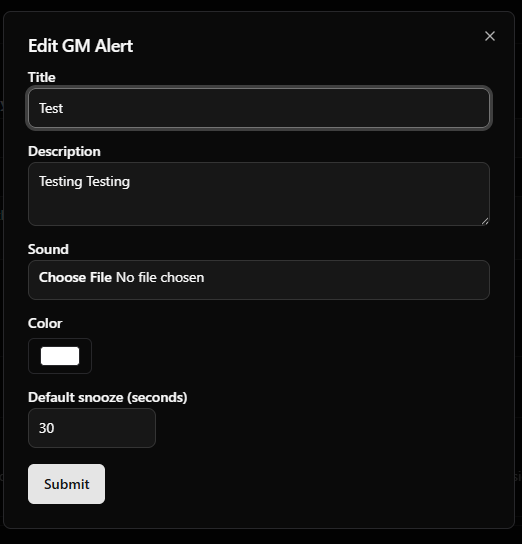
Once you select the ‘Add Alert’ button, a window will open where you can enter a Title/Name and Description for the alert. You can also upload a custom sound effect that will play when the alert is triggered. The color selection determines how these alerts will look on the Overview and Hosting screen.
Snooze Custom Alerts
This feature allows the gamemaster to snooze custom alerts while gamemastering
Add a default snooze duration, in seconds, when creating or editing custom alerts.
Configure this under Settings > Game Settings > Objectives by selecting an objective and choosing Add Alert or Edit Alert.
This functionality applies only to Game Master alerts, not host alerts.
When an alert appears on the Game Master’s screen, they can use the default snooze duration or choose a different duration.
Was this helpful?
Still need help? Share an idea