Reviews
Track review mentions, set monthly review goals, auto-generate responses
Written By Emma Williams
Last updated 9 months ago
Features
Sync reviews from Google
View recent reviews and reply
Auto-generated sample responses with one-click approval
Auto-reply to 4 and 5 star reviews
Track employee review mentions
Set review goals for monthly targets or all-time review count
Setup
1. Google Business Profile
You must first add our service account as a manager to your Google Business Profile account. See Google’s instructions, or follow below:
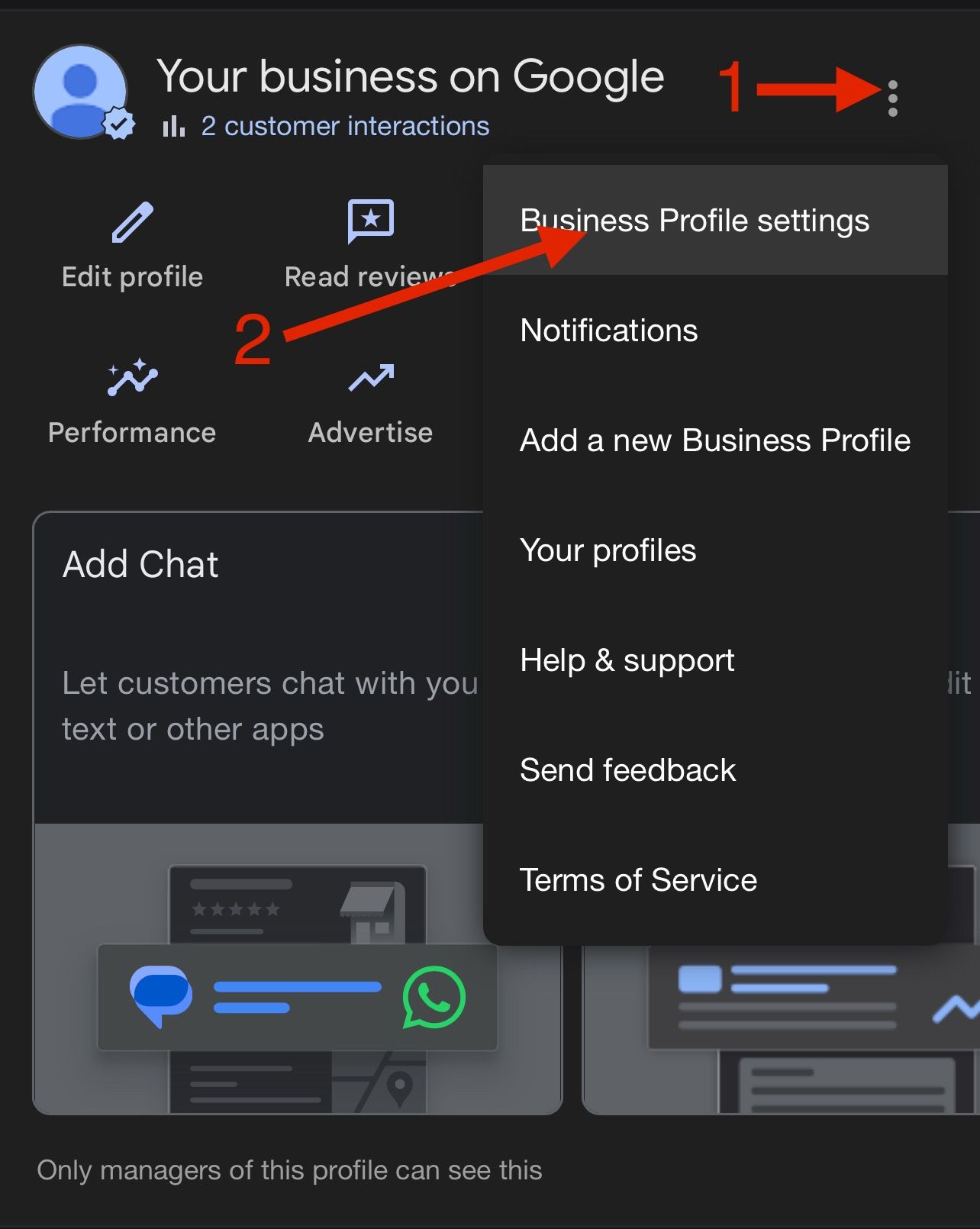
Go to your Google Business Profile
Select the 3 dots in the top right
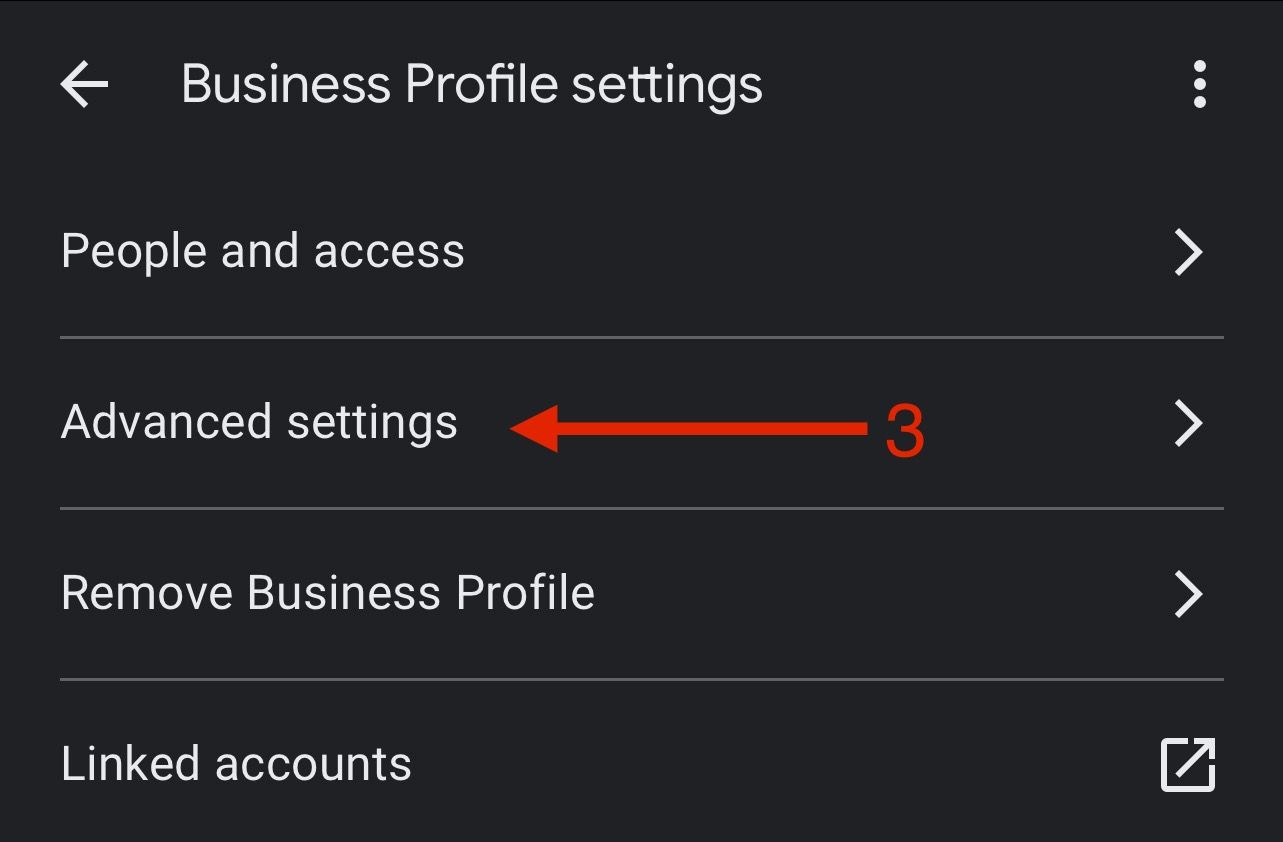
Select Business Profile Settings
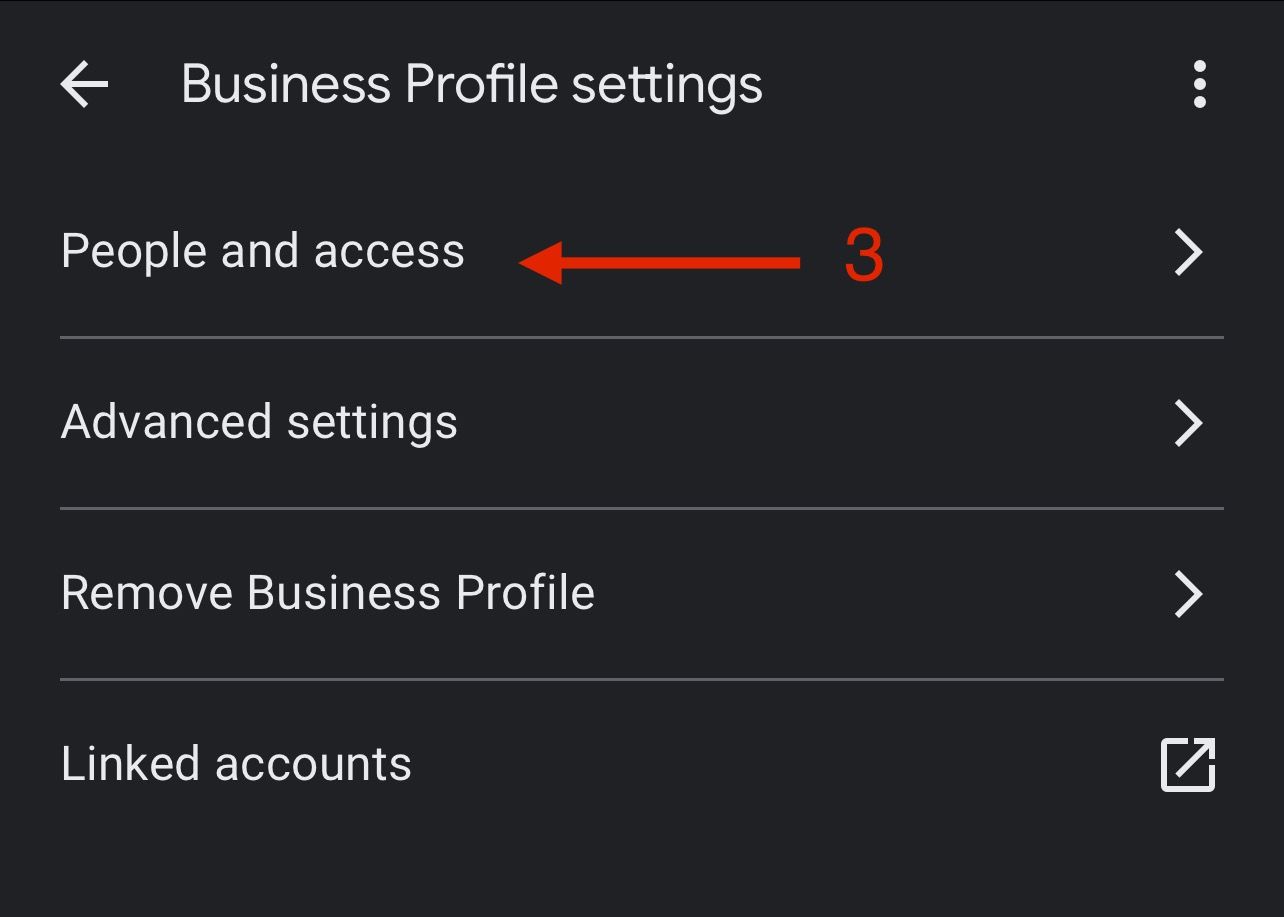
Select People and Access
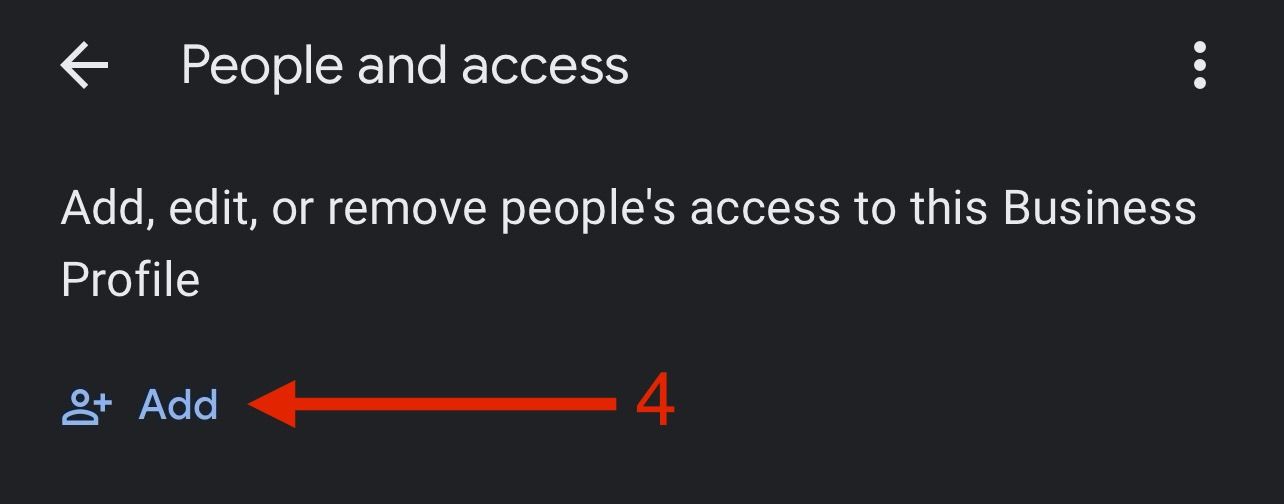
Click Add
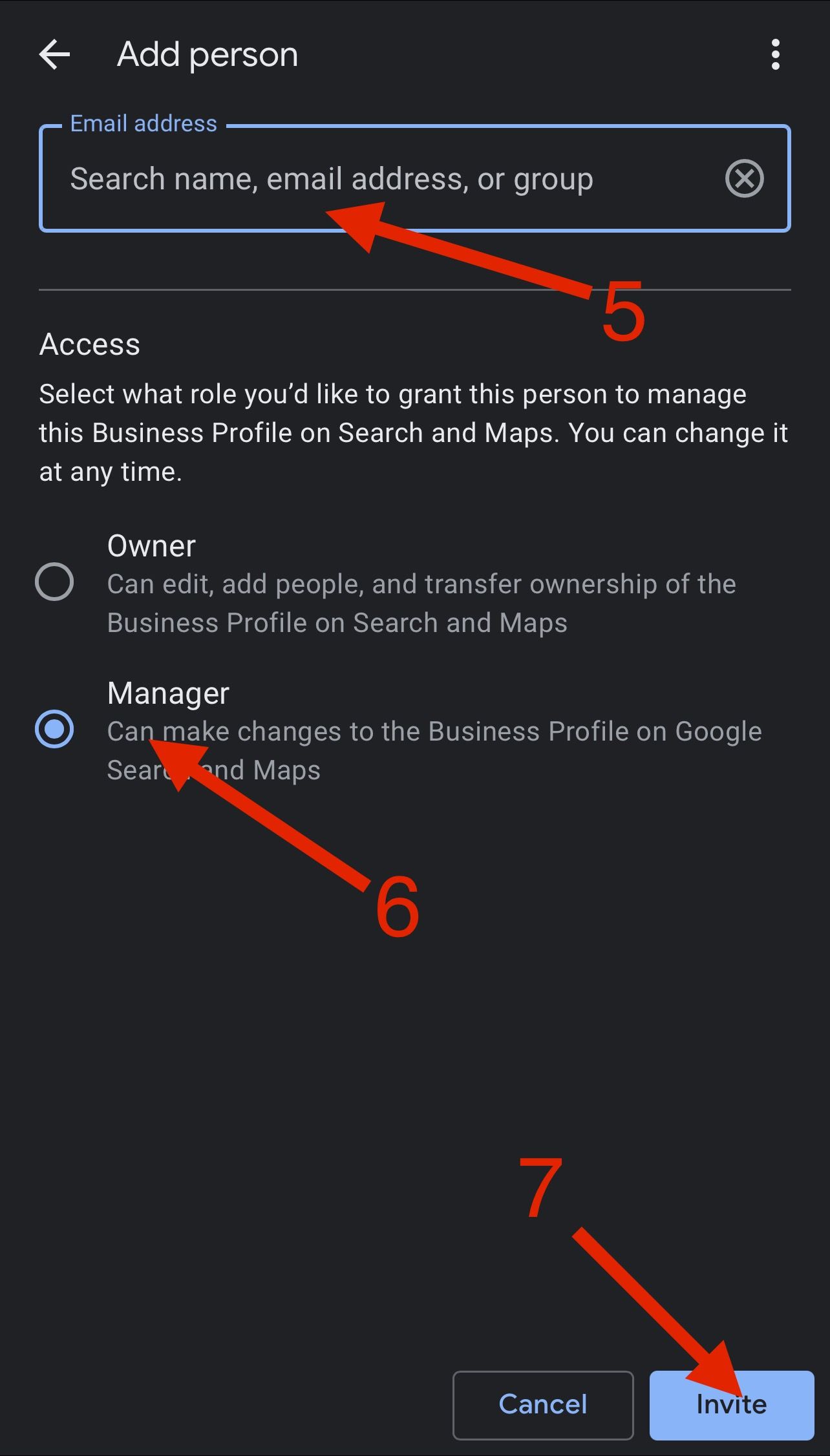
Enter our service account email address
Select Manager permissions
Click Invite
View Image Setup Guide
View Image Setup Guide
Go to your Google Business Profile
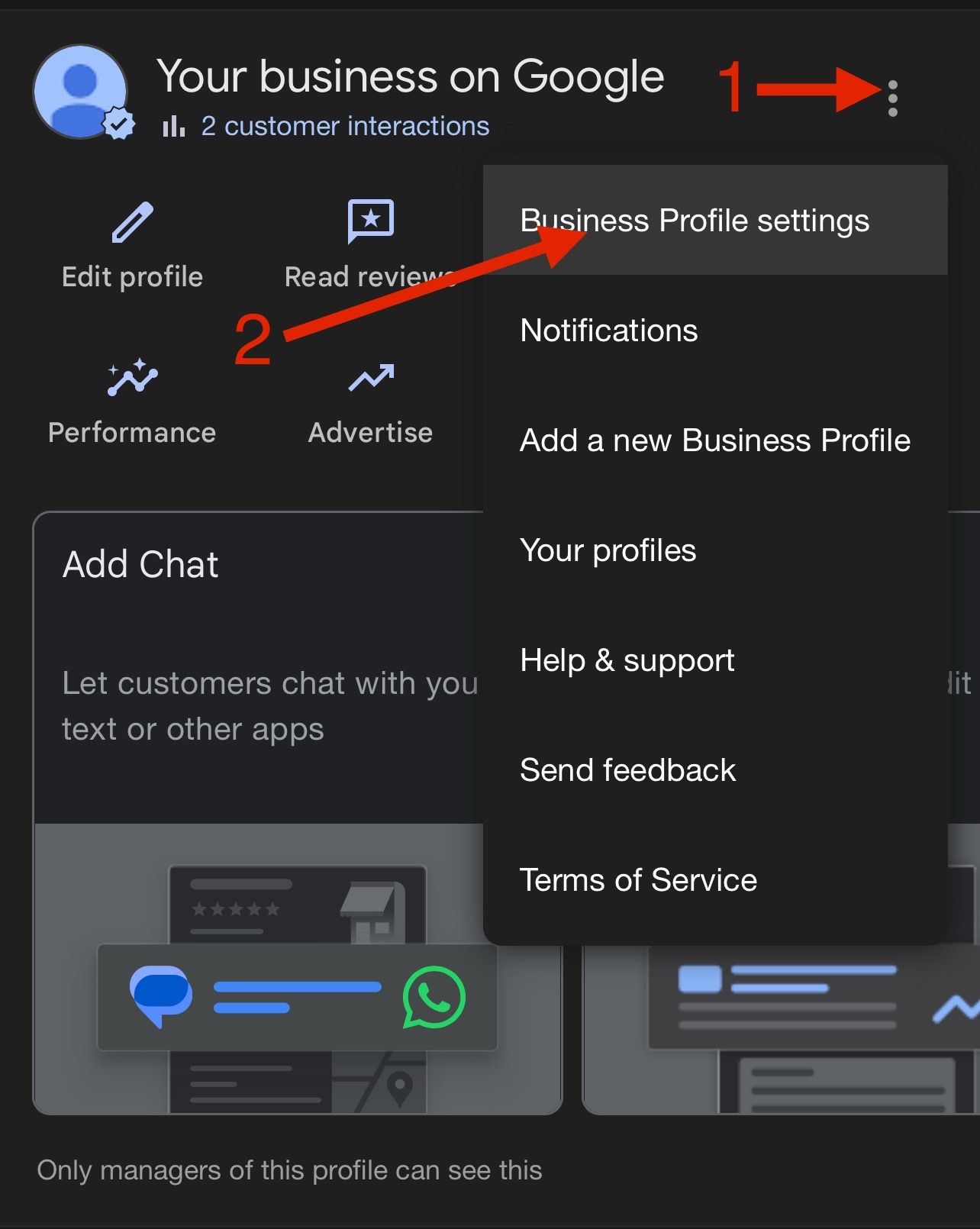
Select People and Access
Click Add
Enter our service account email address
Select Manager permissions
Click Invite
2. Configure Drawbridge
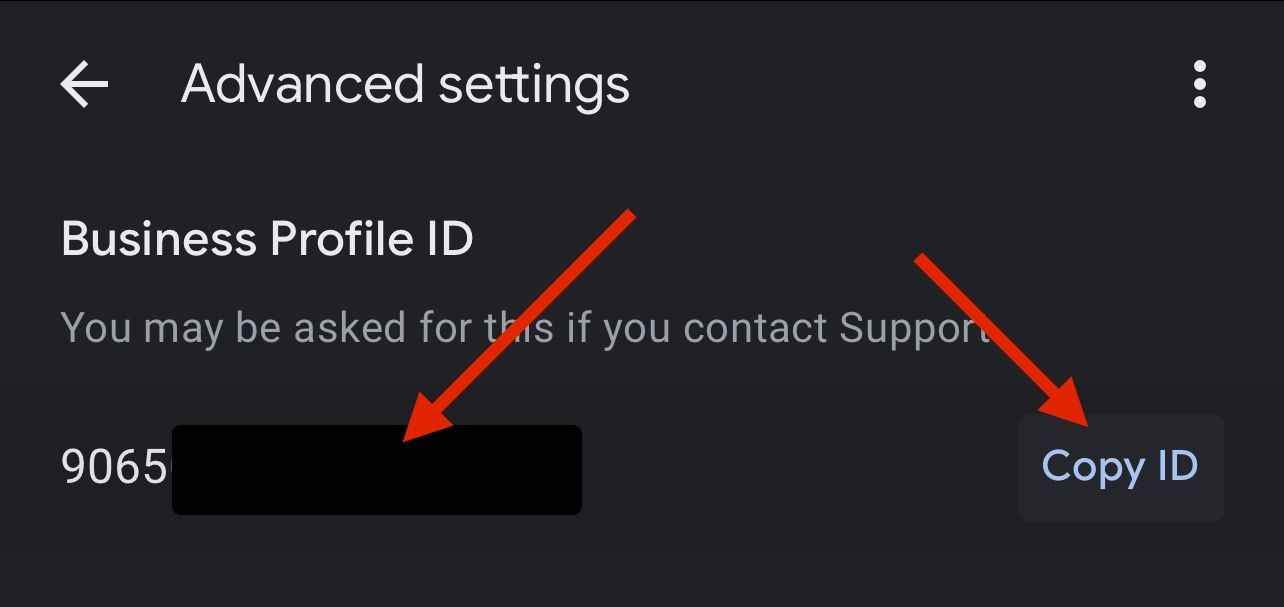
Add your Google Business ID into Drawbridge
You can find your Google Business ID in your Google Business Profile
Enter a prompt for generating review responses
Set response preference settings
Click Save
Alternate Employee Names
Account for typos and misspellings in customer reviews by listing possible alternate/incorrect spellings of employee names in the Review Settings.
Add alternate spellings to the right of the corresponding employee name (ex. Kaitlyn, Caitlyn, Caitlin, etc.) Any name seen in a review that matches the employees first name or one of the listed alternate spellings will be counted as a review mention.
If multiple staff members share a name, each employee should be assigned a unique nickname within Drawbridge and request reviews using that name. First name and last initial is another solution, if the employees do not share a last initial of course. Make sure to list the first name and last initial in the Alternate Employee Names field for these to be counted properly.
Was this helpful?
Still need help? Share an idea