How to Set Up Automatic Countdown Display Launching Script
This article will show you how to set up our custom countdown display launching script to automatically display your escape room countdown page when your PC turns on.
Written By Drawbridge Support
Last updated 7 months ago
Companion Video
In the world of escape rooms, the computers that power countdown displays are commonly embedded inside of display enclosures, walls, ceilings, or other hard to reach places. When opening a room, it can be tedious to manually launch the countdown display page on these computers. This script will automate that by automatically launching the script when the PC boots into the desktop.
For information regarding the process of setting up automatic login to the Windows 11 desktop, please refer to our previous article linked here.
Step 1: Download Script
This script requires the Google Chrome browser to be installed on your PC. Download it here.
The script itself can be downloaded here. The filename will be Countdown-Launcher.batThere may be a pop up warning that the file cannot be scanned for viruses, simply ignore this and click download anyway.
Step 2: Find Link to Countdown Display
Open Drawbridge in your web browser. Navigate to the game you are setting up the countdown display for, and press the “Countdown” button in the top left corner of the Game Mastering page. This will open the countdown display in a new tab.
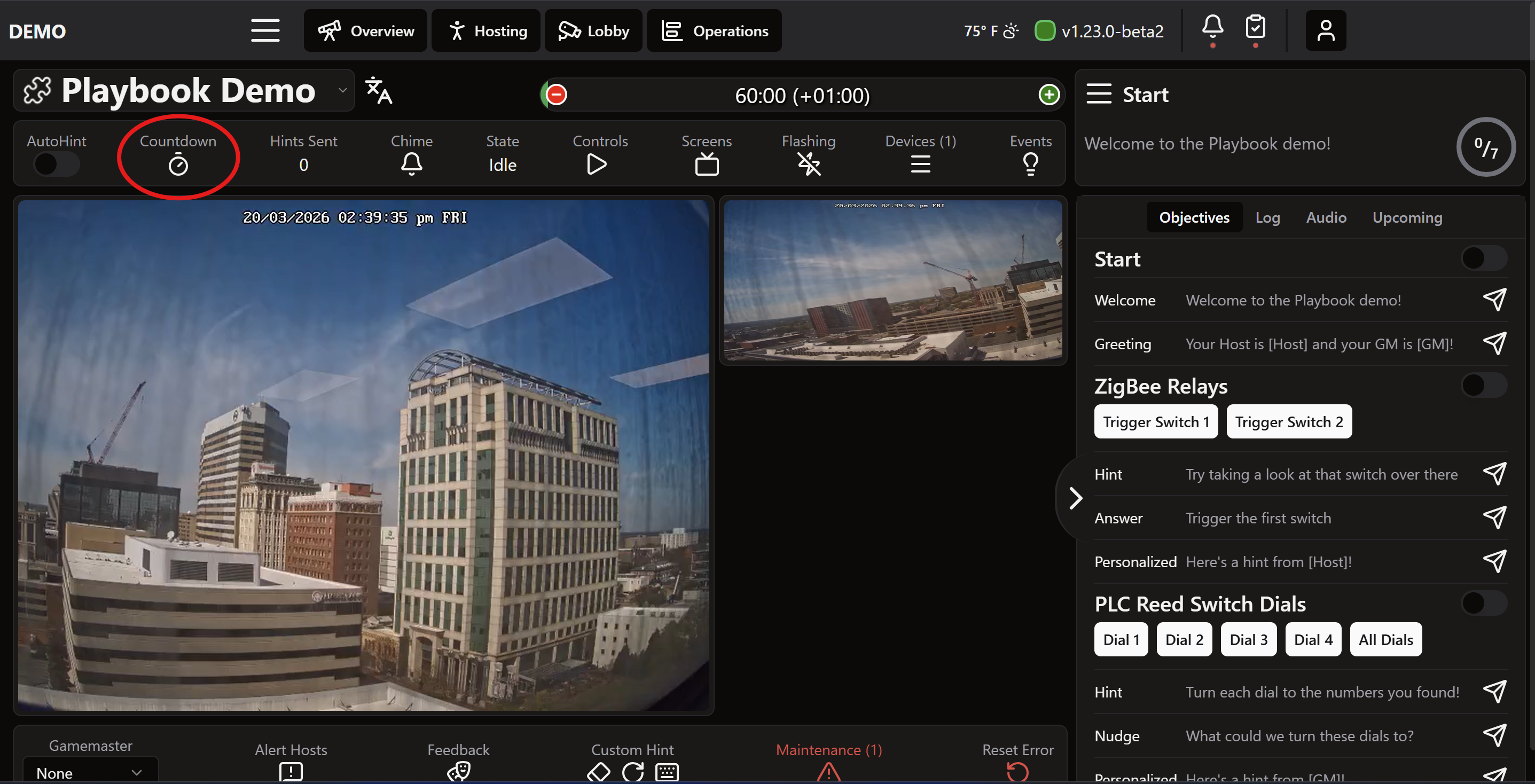
The URL of the countdown page can then be copied from the browser. It will likely be similar to the following link: <LOCATION>.drawbridgeai.app/countdown/<NUMBER>
Step 3: Paste Link Into Script
Open the Countdown-Launcher.bat script in the text editor of your choice (I used Notepad), and paste the link you just copied into the following line:
set URL=<LOCATION>.drawbridgeai.app/countdown/<NUMBER>
For example, my line is as follows:
set URL=https://demo.drawbridgeai.app/countdown/10
Save the file and close your text editor.
Step 4: Initial Test
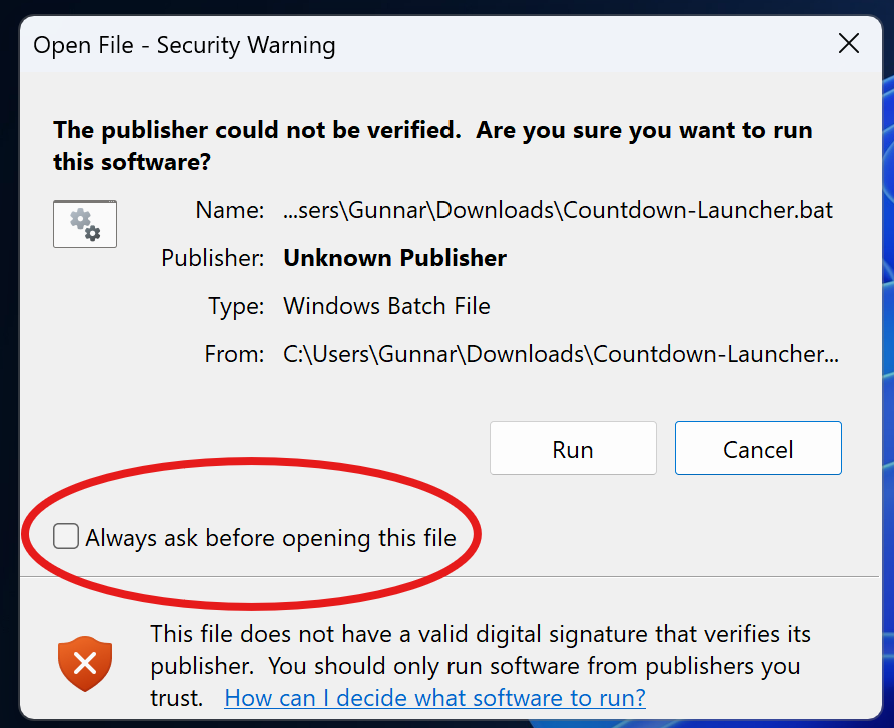
Find your script in your Windows file manager, and double click it to launch. If you get a pop up as seen in the image below, make sure to uncheck the circled “Always ask before opening this file” box to prevent future interference, and then click “Run.”
Since this is a custom script, Windows flags it as potentially dangerous. The file is perfectly safe, and you can read through the code in your text editor if you want to be safe. This file will not harm your computer in any way, and will only launch your countdown display.
If everything went well, you should see your countdown display in a browser window.
Step 5: Transfer Script to PC
Now that the script is ready, it needs to be transferred to the PC you intend to run it on. Please see the companion video at the top of this article for more details. The two recommended methods are summarized below:
Flash drive
If you have easy access to the physical PC, you can simply copy the script to a flash drive, and use this to transfer the file to the mini PC.
Nearby Sharing
If the PC is embedded in a wall, enclosure, ceiling, or other hard to reach location, Windows Nearby Sharing can be used to wirelessly send the file to your countdown PC from another PC. Note that WiFi and Bluetooth are required for this.
Step 6: Add Script to Desktop and Startup Folder
The last step is to move your file to the desktop on your PC. This will provide easy access to manually launching and/or editing it if needed.
To automatically launch the script,
Press the “Windows + R” shortcut on your keyboard to launch the ‘Run’ dialog.
Type
shell:startupand press enter. This will open a file browser window containing links to apps that will run on startup.On your keyboard, press and hold the “Alt” key (this will link the file instead of moving or copying it).
While holding the Alt key, select the script file on the Desktop, and drag it over the Startup file browser window.
Ensure the script file appears in the window, and then close it upon confirmation.
Step 7: Reboot and Test
If all goes well, your script will automatically run whenever you reboot your PC. Note that automatic login is not enabled by default, so please follow our guide to set up automatic login on Windows 11 if needed.
Was this helpful?
Still need help? Share an idea