Timing and Tracking Resets
Keeping tabs on how quickly you can turn a room around!
Written By Taylor Reed
Last updated 3 months ago
Drawbridge allows you to time and record reset times across employees and rooms!
How to Time a Reset
When a game ends and its group has been debriefed, the tile will move to the Needs Reset column.
A small, white clock icon will appear. Clicking the clock will start the timer—it should turn green. If you ever need to pause the timer, simply click the clock again. It will appear red when paused. Another click will resume the timer.
Once both the physical Room Reset and the Game Control reset have been completed, the reset timer will stop counting and log the time. It will immediately appear in the Notifications tab in the top right of the Drawbridge page.
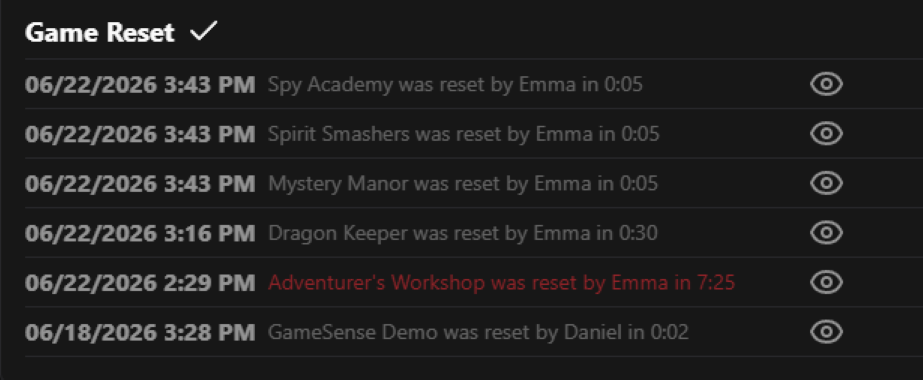
Reset Times are used in a few places!
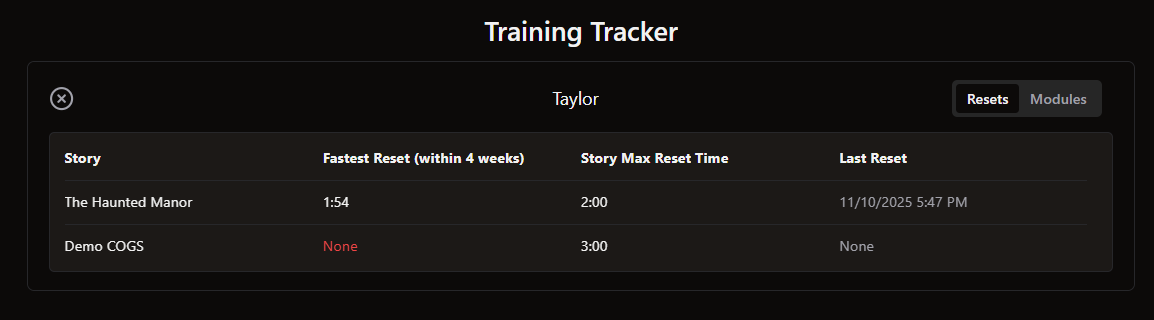
View each employee’s current fastest Reset, and be notified when staff haven’t successful passed a Timed Reset in a while!
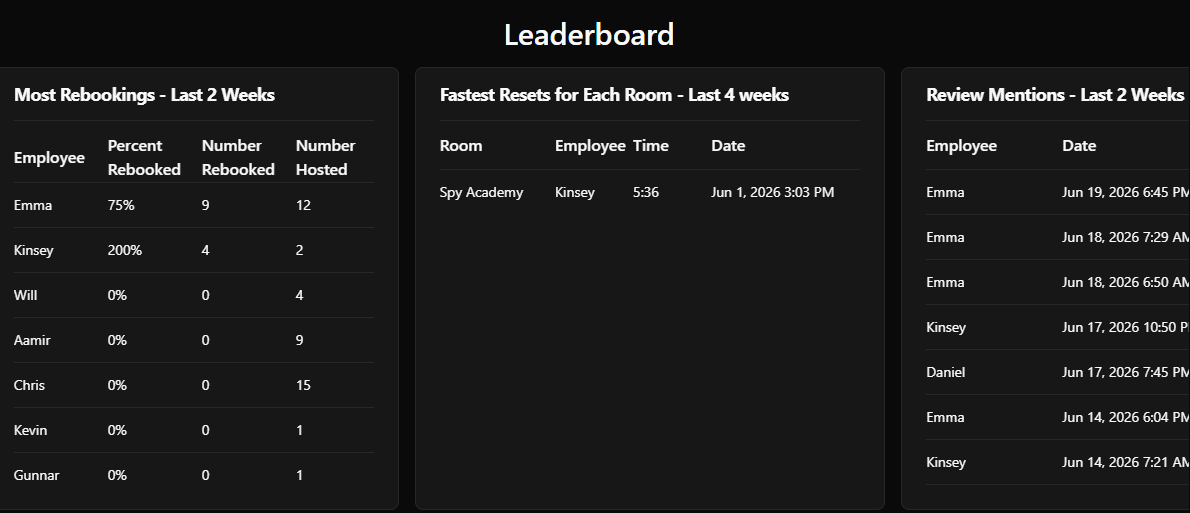
Boost team morale with some friendly competition! Staff can view their best times in the Staff Leaderboard and inspire each other to become more efficient.
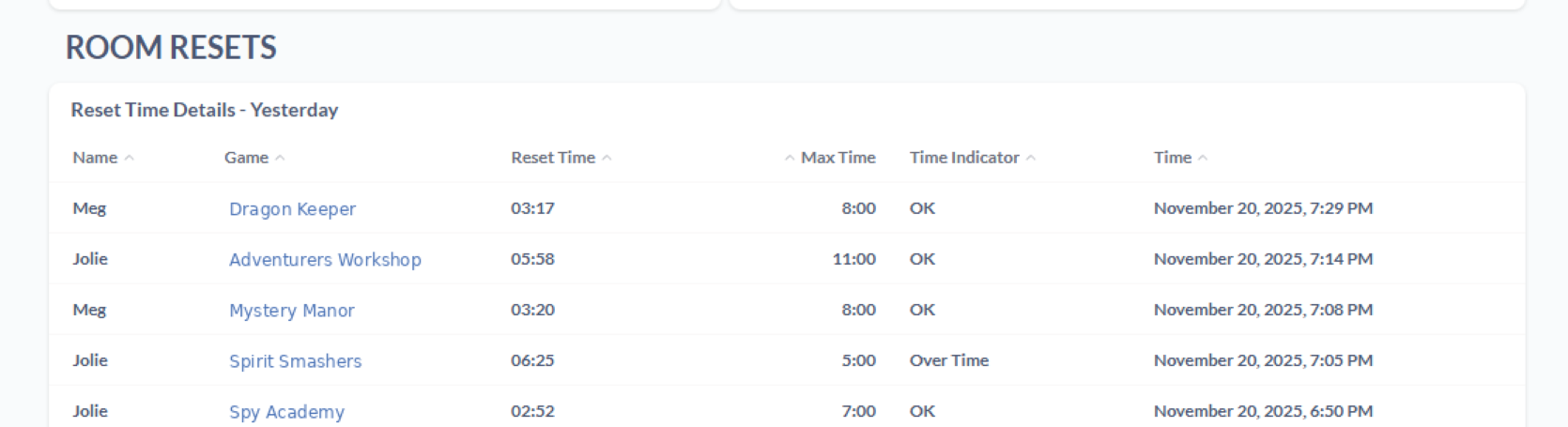
Analyze your venue’s past Resets and keep up with new ones in real-time!
Keep track of how often Reset Errors occur and which staff or rooms tend to be involved!
Start Resets with a Physical Hint Button
The Reset Timer can be triggered using a physical device!
This method uses a Game Control (M3) reset as the trigger to start the timer—if you don’t begin a room reset with a Game Control reset, controlling the timer with the clock icon is your best bet.
In order to do so, a couple of things need to be configured:
M3 Event Config
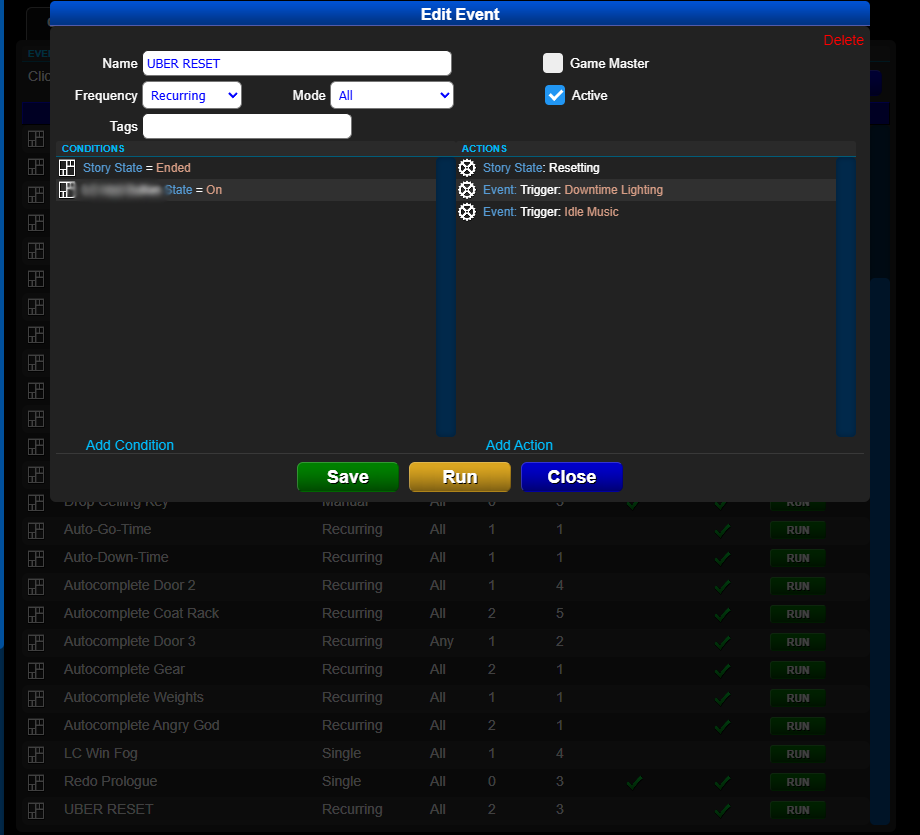
Create a new Mythric Event—name it something like “Reset Timer”.
Basically, the event should set these instructions:
IF the Story is in the ENDED state,
AND the Hint Button has been pressed,
RESET the Story
This event should look something like this:
Drawbridge Settings
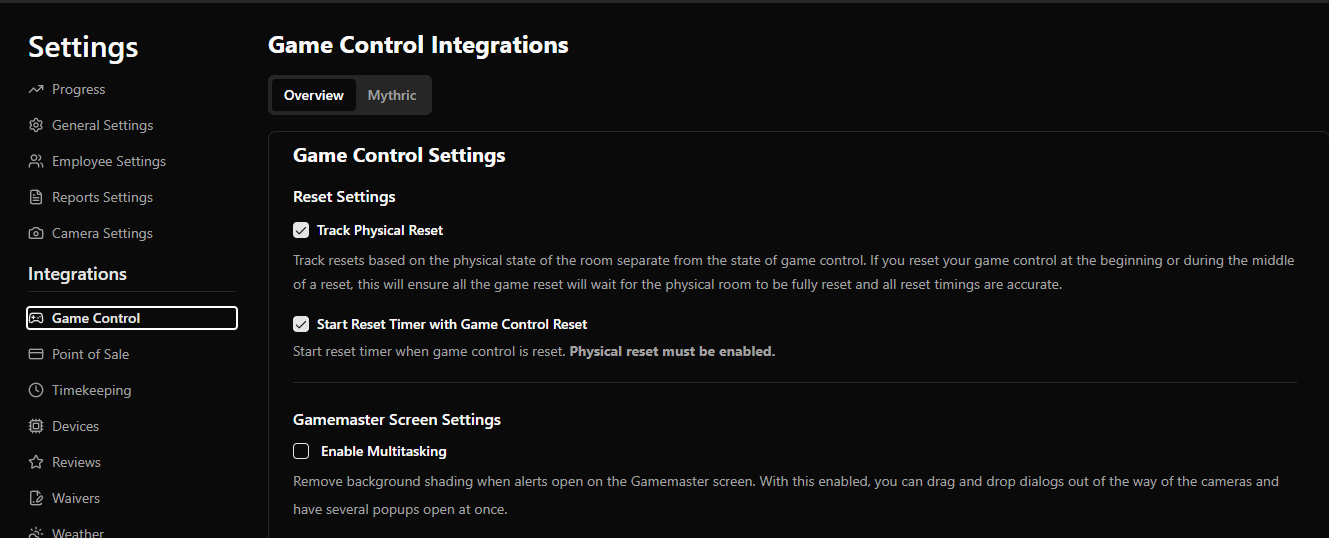
Once the Reset Timer event exists, navigate to the Game Control settings within Drawbridge.
Make sure "Track Physical Reset" and "Start Reset Timer with Game Control Reset" are both checked.
This will now trigger a M3 reset and start the Reset Timer once the hint button is pressed.
Why does timing resets matter?
Measuring efficiency.
First and foremost, timing resets lets us know if employees are trained. If employees aren’t completing resets within the time limit, they don’t know the reset anymore. This is why the training tracker will mark someone as “untrained” if they haven’t completed resets within the time limit recently. The training tracker takes their fastest reset time in the last 4 weeks, so if they’ve done it within the time limit even one time, they’ll count as trained. Not knowing resets means they’re not working as efficiently as they could be.
Another function that helps with efficiency is the clock indicator. When a reset is in progress, the clock will be green or red. This lets everyone in the venue know that a reset is in progress and saves them the time of searching cameras or walking to rooms to see if a reset is in progress.
Timing resets can also encourage a competitive environment between staff. The leaderboards highlight reset times without errors and it’s easy to host competitions or set goals around reset times.
Cutting down and monitoring reset times can also allow venues to shrink the amount of buffer time between scheduled games. Knowing exactly how long a reset should take informs how closely together you can schedule games. Shrinking turnaround time between games could allow you to get an extra round of games in, bringing in more revenue.
Was this helpful?
Still need help? Share an idea