Camera Settings
A walkthrough of all camera settings and what they do
Written By Emma Williams
Last updated 3 months ago
Defaults
The Mute on Primary Leave slider will turn off audio on a camera when you click on a different one on the Game Master Page.
The Unmute on Primary Enter will automatically turn on audio from the main camera when opening the Game Master Page.
Preserve Camera Volume will maintain volume when swapping between cameras.
Camera Scope allows you to select if the above settings will apply across every camera open on a device or just per game.
Lobby Cameras
This is where you can add access to additional cameras not in escape rooms. Outdoor security cams, lobby cams, hallways, etc. These will appear under the Lobby tab on the top navigation bar. Information about connection strings for different camera manufacturers can be found here. If you need help adding cameras, email support@drawbridgesolutions.com.
LobbySense
Configure alerts for when customers enter the lobby, track how long customers have been in the lobby, and show live times on the camera feed for the lobby.
Configuration
To configure LobbySense, you’ll need to go into Settings>Camera Settings>LobbySense. Create a new detection and select a camera that shows the lobby. For most locations, this is all you’ll need to do. If your lobby has photos of people or you’d like to only look for customers in specific areas of a camera feed, follow these steps:
Configure this detection by adding a reference image. You can upload this from your computer or use the “Collect Data” button on the right hand side to view the camera live and take a screenshot to upload.
Create zones of interest (where you’d like to look for customers). To do this, you’ll hit the edit button and then draw a box to create a zone. Boxes must start in the top left hand corner and end in the bottom right hand corner. If you’re only drawing one zone, you can proceed to testing.
If drawing multiple zones, you can name them and designate a number of people needed within a zone by hitting the “Edit Conditions” button. Clicking on a zone will allow you to configure it.
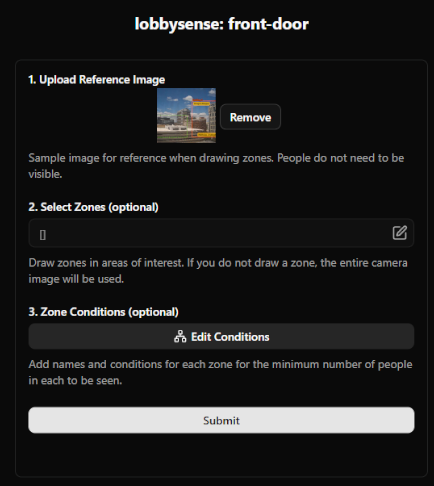
If you’d like to test your zone and make sure it is detecting people, you can hit the “Test Detection” button on the right hand side. This will bring up a live feed of the camera with the zone you drew and a number. Send a staff member in to stand in the lobby and watch the timer start!
Lobby Overlay
To view wait times for guests currently in the lobby or turn on alerts on a device, you’ll need to navigate to the Lobby tab.
To quickly see how long people have been waiting in the lobby, click the checkbox next to Overlay. This will draw a box around anyone in the lobby and tell you how long they’ve been in the room.
To configure alerts for people entering the lobby, you can click on the green icon seen below.
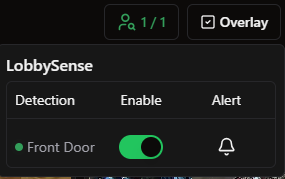
Here, you’ll see a list of detections, can turn them on/off quickly, and turn alerts on/off. Clicking on the bell will turn notifications on for the device you’re using. This means as long as the Lobby page is up, a person entering the lobby will cause an alert to appear in the bottom right hand corner and a sound will play on that browser.
Lobby Zones
Creating Lobby Zones allows you to assign groups of people in the lobby to a seating zone.
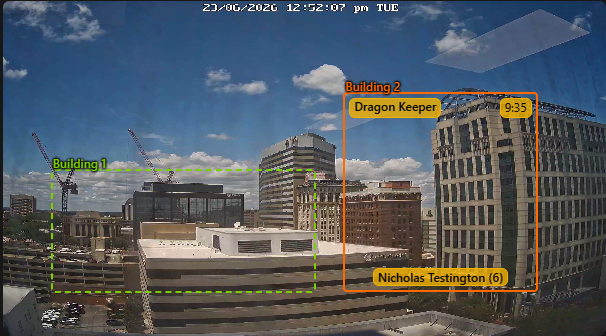
To create a zone, navigate to Settings → Camera Settings → Lobby Zones and hit Create Zone.
Select the camera that sees this zone, give it a name, and pick a color for the zone.
From here, click Draw to define the zone. Click once in the top left corner of the zone and then click again in the bottom right to place a box over the zone.
Now, when you navigate to Lobby, the camera will appear with the zone outlined in the color you chose.
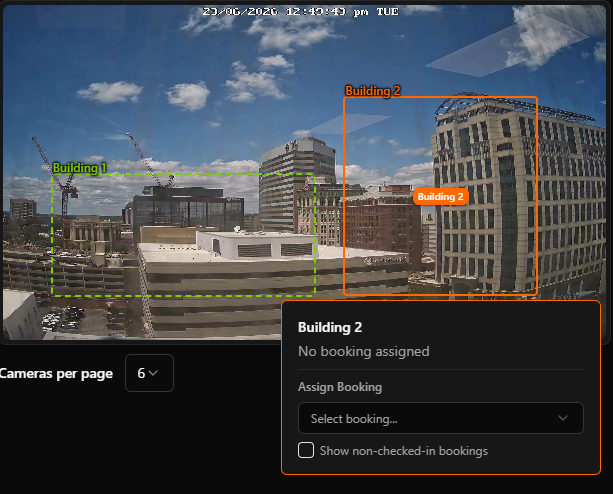
Once a booking has checked in, you’ll be able to assign them to a zone. Click on the zone they’re sitting in and select the group from the dropdown.
Now, anyone who views the lobby screen will know what group has checked in, where they’re sitting, when their game starts, and how long they’ve been waiting.
Once the game has been started, it will automatically clear the zone in the lobby for the next group.
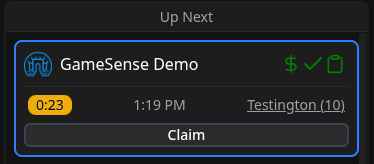
For quick reference, groups that are assigned a zone in the lobby will also have a colored outline on the Hosting Page. Looking at this booking, we immediately know they are seated in the blue zone.
Fixes for Common Issues
Camera Lag:
The bitrate of your cameras may be too high for your network to handle! You can free up some bandwidth by adjusting the settings on the cameras themselves (not in Drawbridge’s settings).
Log into your cameras directly and lower each camera’s Max Bitrate to 1024 Kbps.
The Max Bitrate can usually be adjusted in the “Stream” section of your camera’s settings.
Was this helpful?
Still need help? Share an idea