Shift Reports
Sending Manager Shift Reports through Drawbridge!
Written By Emma Williams
Last updated 9 months ago
Configure Shift Reports for your venue
Once Shift Reports are configured, Managers should navigate to the Venue Operations Dashboard, either using the Operations button or toggling to Venue from the Overview screen.
Scrolling down on the Operations Page, there is a section titled Shift Report (todays date)
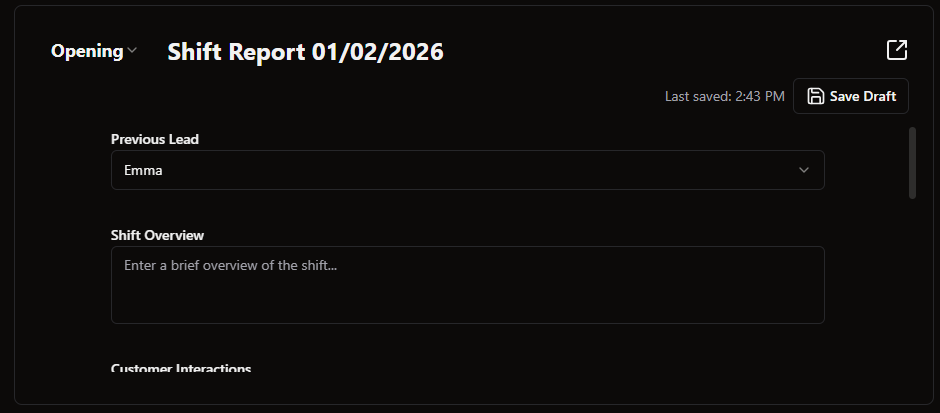
The report can be edited on this page, or if you click on the top right corner or title it will open in a larger window.
Select Opening or Closing Report in the top left to access whichever you need.

Proceed to fill out the remainder of the report, some fields will be automatically filled so they will not appear here.
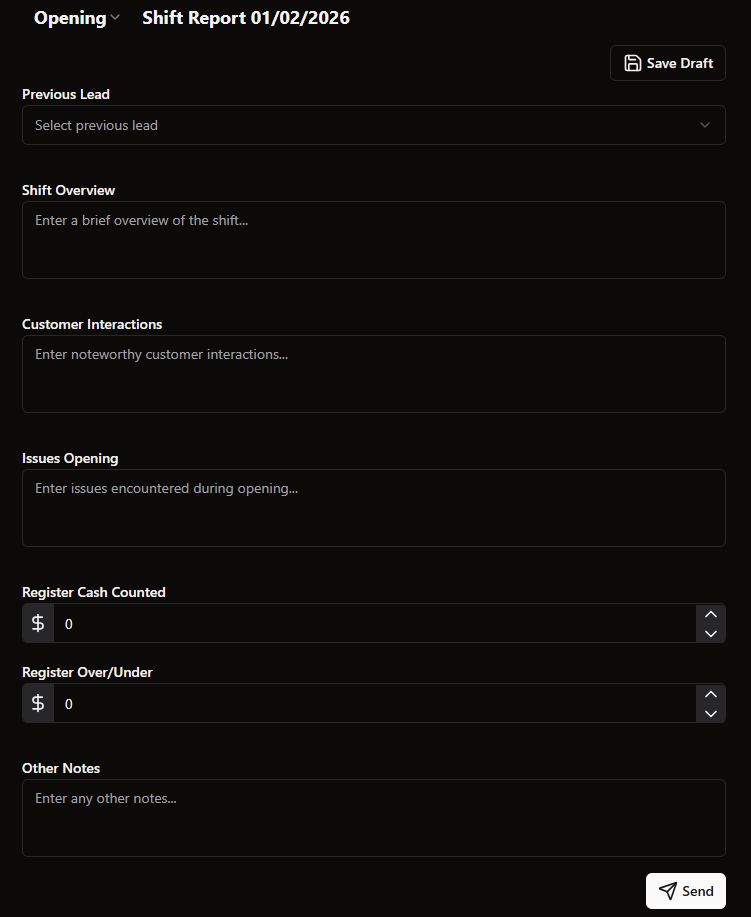
Once the form is filled out it can be saved as a draft and edited later, or it can be sent.
Once Send is selected, an option to review employees will appear.
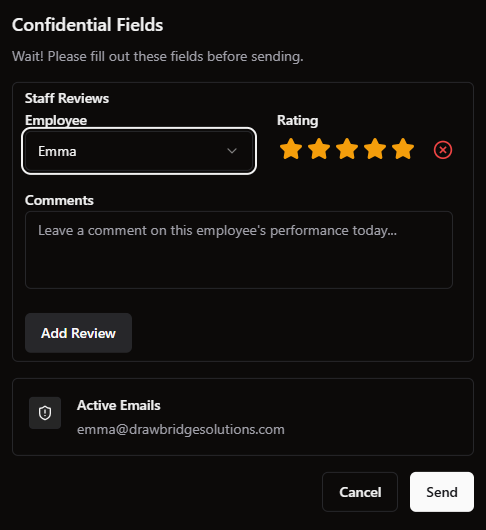
Managers can “Add Reviews” for employees here and leave comments about their performance. This field is confidential and cannot be saved in a draft. Any sensitive information should be put in this area since it will be sent directly to the emails listed, not stored to send later.
You can also review which emails will receive this report before sending. Edit active emails in Settings → Report Settings → Shift.
Was this helpful?
Still need help? Share an idea