General Settings
A walkthrough of all general settings and what they do
Written By Emma Williams
Last updated 3 months ago
Localization
Under General Settings → Localization
Set a display name for your venue - this appears in the email or text customers receive when you send Magic Moments to them.
Select currency, units, date format, and time format for your venue. Also set a time zone, zip code, and country.
Daily Tasks
Settings → General Settings → Daily Tasks
This is where you will set up daily or weekly cleaning reminders for staff. You can nest these tasks into categories and assign them to any day of the week.
Select the checkbox to display task descriptions in the task dropdown on the Navigation Bar.
Management
Under General Settings → Management
Set an access pin to restrict access to Settings.
Email addresses listed here will receive emails when customers select the ‘I have feedback for the owner’ checkbox on low scoring surveys or when using Groupon integration to find fraudulent codes.
Venue Events
Under General Settings → Venue Events
Minimum dollar total sets a threshold as to what should be considered an ‘event’ in your venue. A good baseline for this could be how much a birthday party package costs or any other event that involves catered food or preparatory action by the venue.
Always Show as Events is mapping items in the Point of Sale to always show as a venue event. Any kind of conference room rental or package that is always sold in the context of an event should be listed here.
Reminders will send a notification to the clipboard under the events tab. The timing on the reminders can be adjusted. The notification in the clipboard menu can be marked as seen and then marked completed.
Lobby Video
Under General Settings → Lobby Video
Upload a video to play in the lobby, a link to waivers, and a logo. These three items will be formatted into a waiting screen that can be launched on a TV in the lobby. The video will play on loop while games in progress are shown on the bottom and upcoming games are shown on the left side. Time of booking is displayed for Upcoming and time remaining is shown for In Progress games.
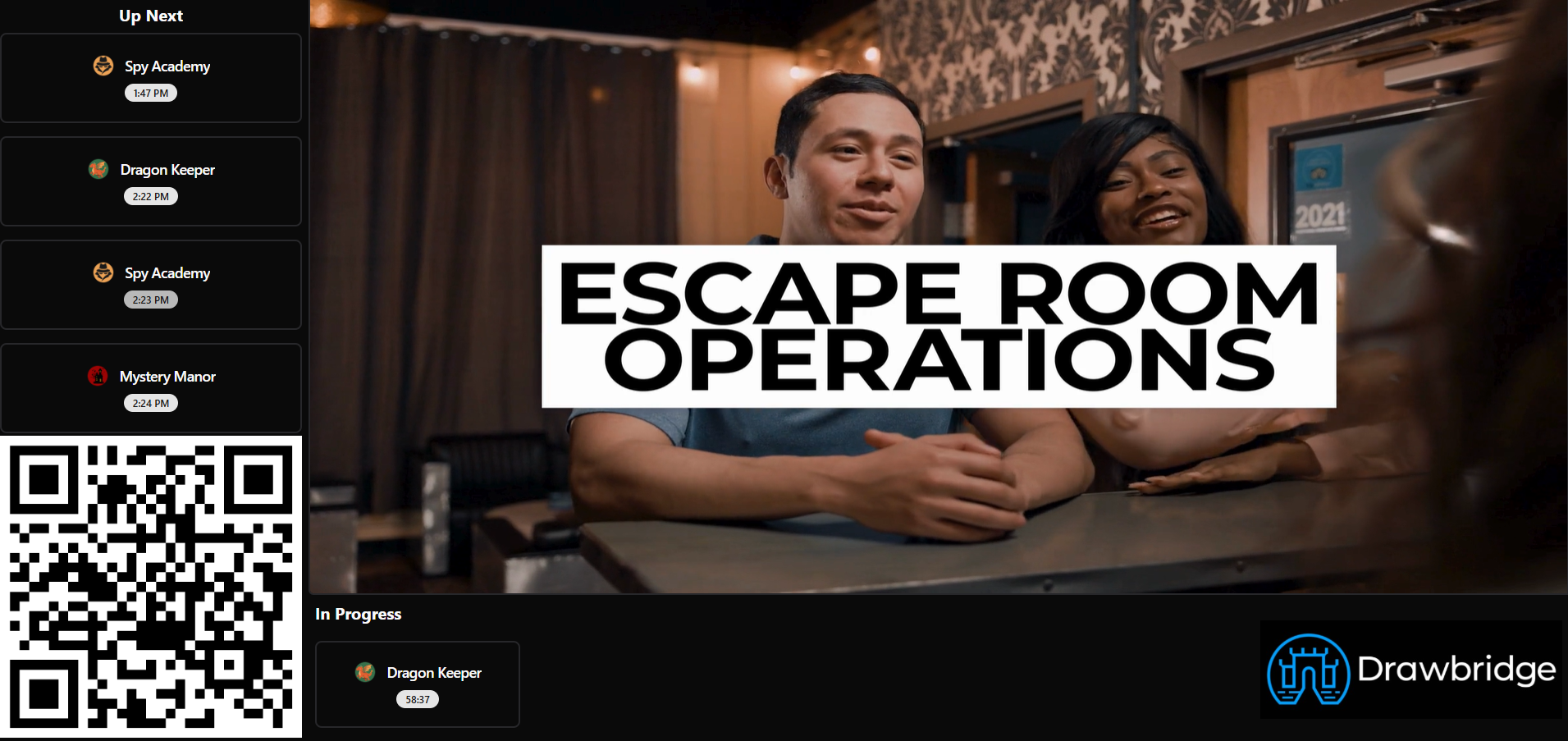
This screen is intended to keep guests updated on the status of their game, especially those waiting for a group to finish. You can opt to have last names on bookings visible or not visible.
Was this helpful?
Still need help? Share an idea